
Background · 5 min read · September 28, 2026
How to Replace Image Background Online With ImageToolkit
Learn how to replace an image background online free. Change a photo background, swap in your own backdrop, edit placement, and download a PNG — no Photoshop required.
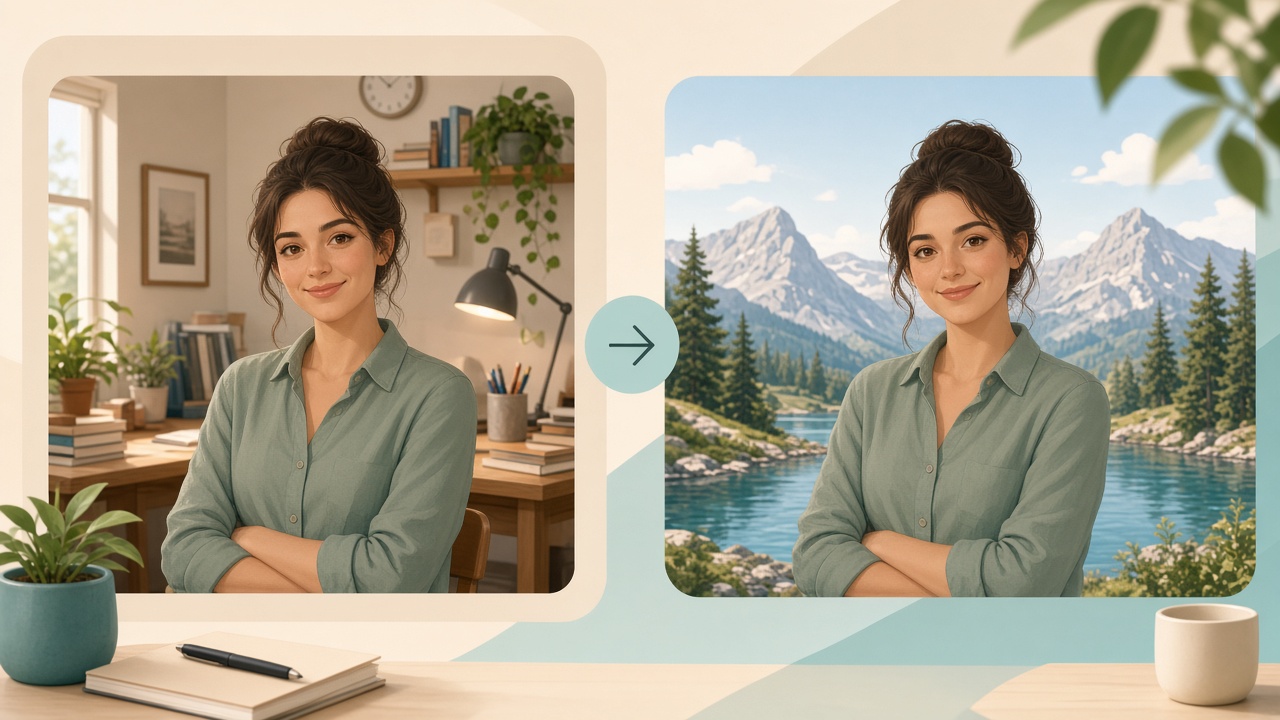
Why people replace an image background online
You have a good subject photo and a bad setting. A product sits on a cluttered desk. A portrait was shot in a messy room. A profile picture needs a cleaner look for LinkedIn or a storefront. That is why searches for replace image background, change photo background, and photo background changer stay busy.
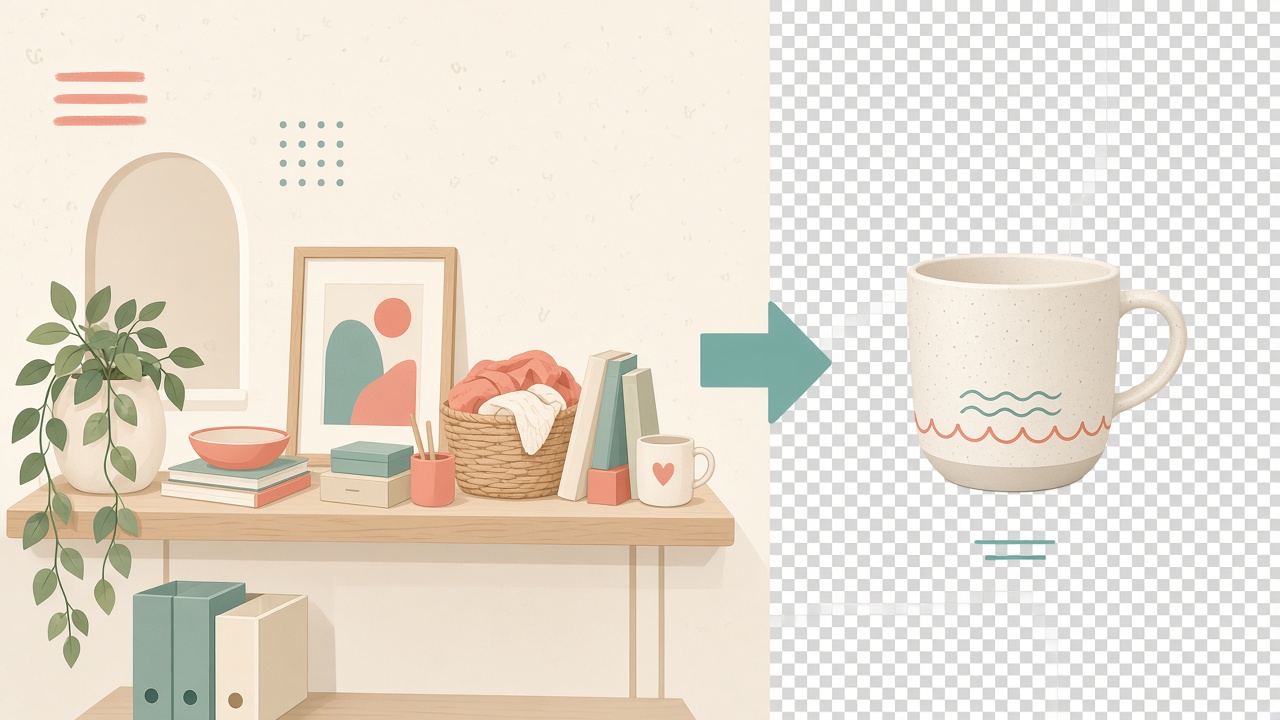
Quick answer: Upload a subject image and a new backdrop, place and resize the subject in a visual editor, then download a composited PNG. You do not need Photoshop for a simple background replacement.
This guide shows how to change image background online with ImageToolkit Background Replacer, how to pick images that look natural, where the tool fits product and social work, and how it compares with traditional editors. If you only need a cutout with no new scene, start with our guide on removing a background for a transparent PNG instead.
"Replace image background online by uploading a subject, choosing a new backdrop, composing placement, and downloading a PNG"
What Is ImageToolkit Background Replacer
ImageToolkit Background Replacer is a free online background changer for swapping the scene behind a person, product, pet, or object. You provide a foreground image to keep and a second image to use as the new background. The tool runs one subject cutout on the server, then lets you drag, resize, zoom, and reorder layers in the browser before Apply builds the final PNG.
Open the tool here: Background Replacer.
Useful details from the product flow:
- No account required
- Subject and background uploads up to about 15 MB each
- Visual editor for position, size, fit/cover, and layer order
- Finished composition downloads as a PNG
- Free to use with no watermark on the export
This background replacement tool works well for portraits, product photo background swaps, profile pictures, social graphics, and promotional images when you want a new scene — not only a transparent cutout. Browse related utilities from the tools directory or the ImageToolkit homepage.
How to replace an image background with ImageToolkit
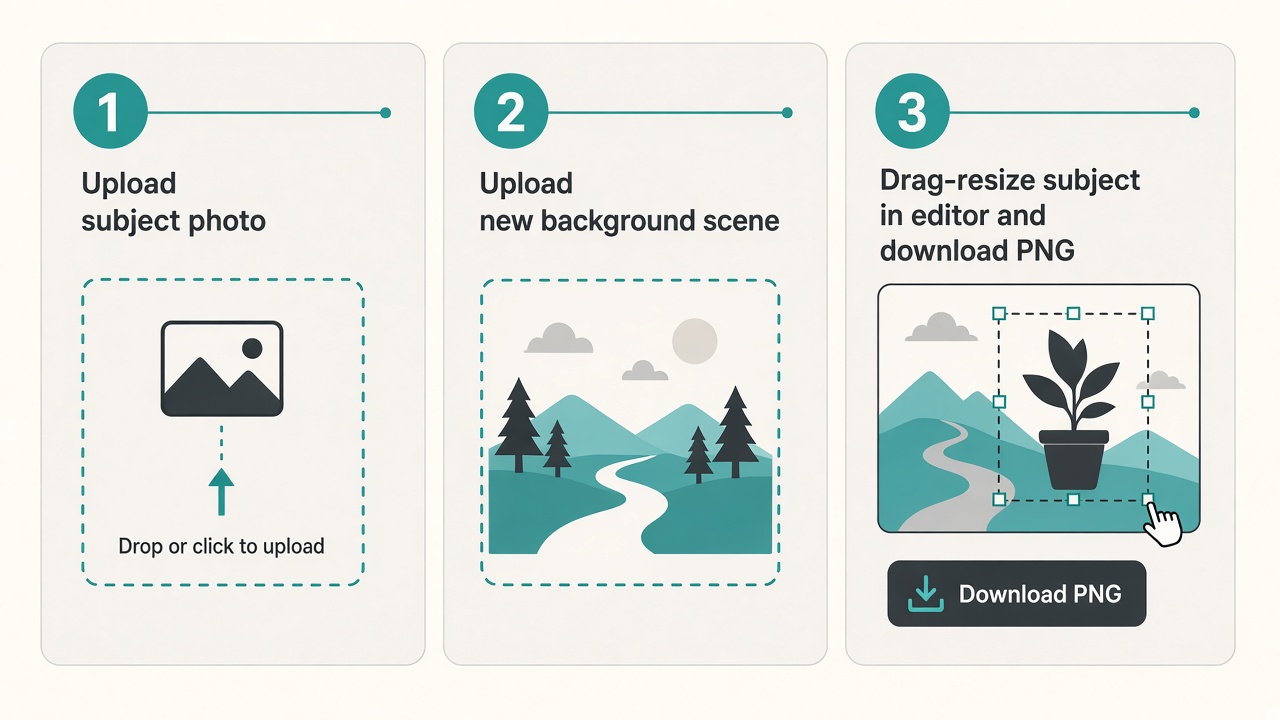
Here is the practical how to replace image background online free workflow.
Step 1: Open Background Replacer and upload your subject
Go to ImageToolkit Background Replacer. Upload the photo that contains the person, product, or object you want to keep. Prefer a sharp file where the subject is clearly visible and has reasonable contrast with the original backdrop.
Step 2: Upload your replacement background
Add the image you want as the new scene — a plain studio wall, office, outdoor setting, room, branded backdrop, or any suitable photo you own or have rights to use. Custom uploads are the core of this tool: you add a new background instead of picking from a locked template library.
Step 3: Continue to the editor and compose
ImageToolkit runs subject segmentation once to prepare the cutout. In the visual editor, move the subject, resize it, zoom, and set front/back order until proportions look natural. Editing stays in the browser — dragging does not re-run the cutout.
Step 4: Apply and download the PNG
When the composition looks right, Apply sends one compose request. Preview the result, then download the finished PNG. If the file still needs a storefront size or format pass, follow up with Resize or Convert.
How to get a better background replacement
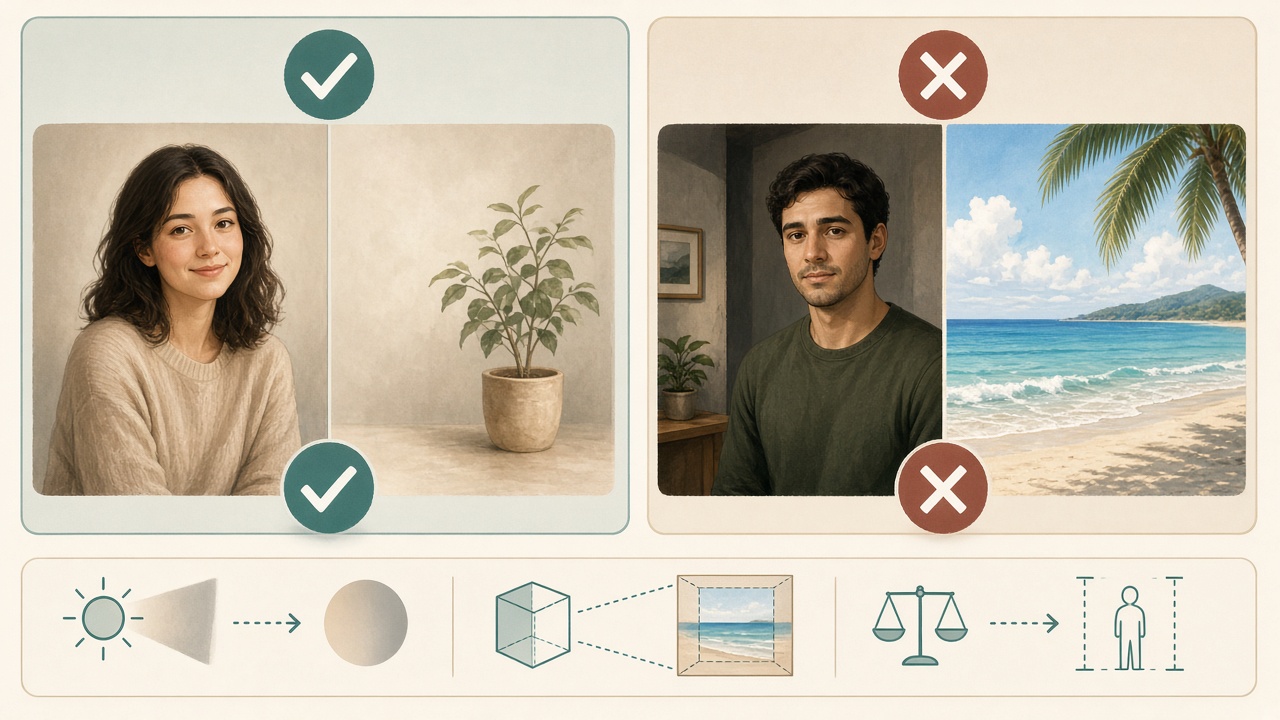
A change picture background job looks convincing when the subject and backdrop share similar lighting, perspective, and proportions. Those LSI details matter more than the brand name of the tool.
Start with a clear subject. Complex clutter, poor light, or a subject that blends into the surroundings makes edges harder. A person against a simple wall is usually easier than someone in a crowded scene.
Match lighting. A dark indoor portrait dropped onto a bright beach often looks fake. Choose a studio background, soft outdoor scene, or room that fits the light already on the face or product.
Match camera angle. A low-angle subject on a top-down backdrop breaks believability. Similar viewpoint helps the photo composite feel natural.
Keep the backdrop from competing. Busy patterns distract from products and profile faces. Simple scenes usually win for ecommerce and headshots.
If you only want depth without a full scene swap, try Background Blur. If you need a transparent master first, use the Background Remover, then place the PNG later.
Where you can use a background replacement
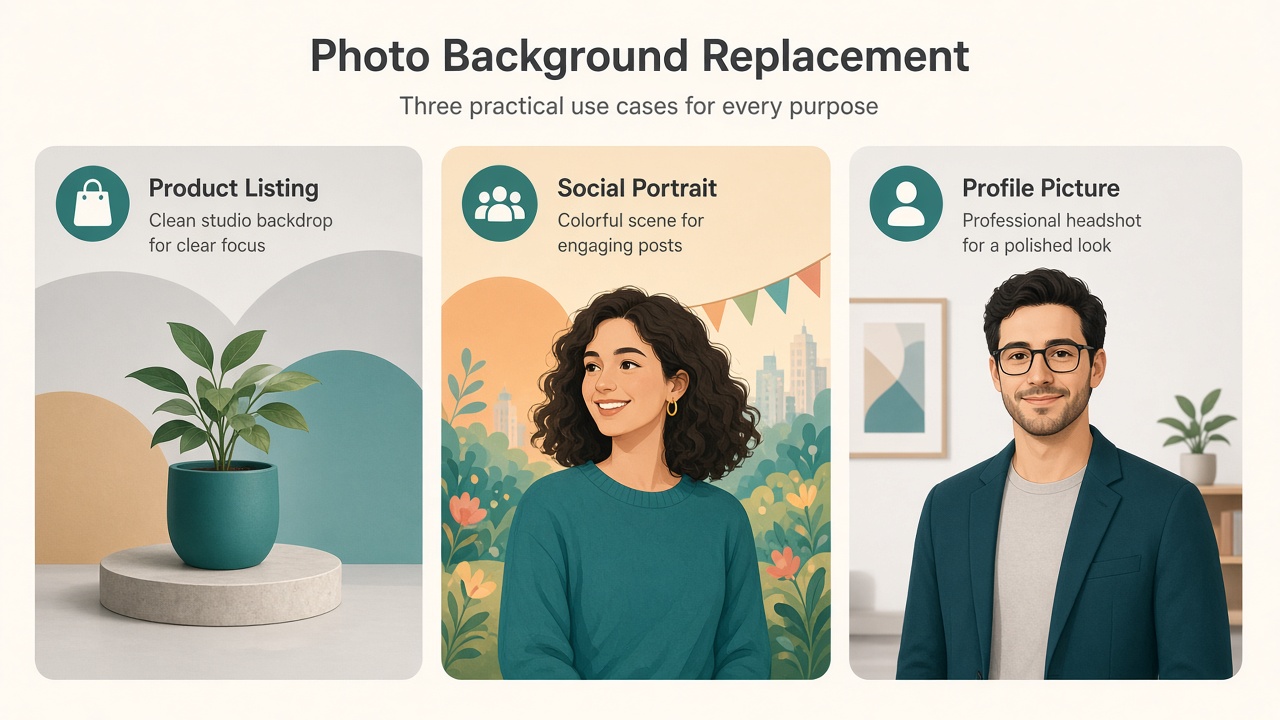
Product photography. Place an item on a clean studio field or a lifestyle scene so listings look consistent across a catalog. Sellers often search replace background of product photo for exactly this job.
Social media graphics. Give an existing portrait a colorful design, outdoor scene, or simple professional wall without a reshoot.
Profile pictures. Swap a distracting room for a cleaner backdrop before you update LinkedIn, a team page, or a marketplace seller avatar.
Business and promo assets. Website heroes, ads, decks, and campaign variants can reuse one strong subject with different settings.
Personal projects. Experiment with locations and colors without booking another shoot.
After the swap, if a portal caps file size, finish with compress images without losing quality. For format handoffs, see how to convert image format online.
ImageToolkit vs traditional photo editing
Both paths can change the background of a photo. The workflow is different.
Traditional software such as Photoshop offers deep control: masks, layers, shadows, color correction, and selective retouching. That control is worth the learning curve when every hair strand and contact shadow must be perfect.
ImageToolkit takes a simpler browser path. Upload subject and backdrop, compose in the visual editor, download a PNG. That is the better fit when you need a free background replacer no signup style flow — quick scene change without installing a full desktop suite.
| Need | Better fit |
|---|---|
| Fast swap background for social or listings | ImageToolkit Background Replacer |
| Transparent cutout only | Background Remover |
| Soften scene, keep subject sharp | Background Blur |
| Pixel-level masks and pro retouching | Traditional desktop editor |
Choose by intent. Detailed professional retouching still belongs in advanced software. Everyday online photo background editor jobs usually do not.
Key takeaways
- Replace image background online by uploading a subject, choosing a new backdrop, composing placement, and downloading a PNG
- ImageToolkit Background Replacer is a free online background changer with a visual editor and no account wall
- Matching lighting, perspective, and proportions makes the result look natural
- Use it for product photos, social graphics, profile pictures, and promo assets
- Prefer Background Remover when you only need a transparent PNG
- Try the tool: https://www.imagetoolkit.online/tools/background-replacer
Frequently asked questions
Quick answers for people searching how to change photo background online, free background replacer options, and product photo swaps.
How do I replace the background of an image using ImageToolkit?
Open ImageToolkit Background Replacer, upload your subject image and replacement background, continue to the editor, adjust position and size, apply the composition, and download the PNG.
Is ImageToolkit Background Replacer free?
Yes. Background Replacer is available as a free online tool. You can use it without creating an account, within the stated upload limits.
Do I need Photoshop to replace an image background?
No. You can change a photo background with an online tool such as ImageToolkit instead of traditional desktop editing software.
What size images can I upload?
ImageToolkit allows images up to about 15 MB for the subject and background uploads.
Can I use my own background image?
Yes. Upload any backdrop image you want for the final composition — studio, lifestyle, outdoor, or branded scenes you have rights to use.
Can I replace the background of a product photo?
Yes. Product photos are a practical use for background replacement. Place the item on a studio, lifestyle, or other suitable backdrop, then download the PNG.
What format is the final image?
Background Replacer provides the finished composition as a PNG image.
Why does my background replacement look unnatural?
The most common reasons are mismatched lighting, incorrect proportions, different camera angles, or difficult subject edges. Use clearer images and a background with similar lighting and perspective.
What is the difference between a background remover and a background replacer?
A background remover cuts out the subject and leaves a transparent PNG. A background replacer goes further: it places that subject onto a new scene you upload, then lets you compose and download the finished image.