
6 min read · September 24, 2026
Convert Image Online Free: PNG to JPG, WebP to JPG, and WebP to PNG
Convert image online free. Learn WebP to JPG, WebP to PNG, and PNG to JPG for forms and sites that reject WebP — plus a free ImageToolkit convert workflow.
Why so many people convert image online every day
You save a picture from a site and it lands as WebP. The job portal wants JPG. Your phone screenshot is a heavy PNG. Email rejects the attachment size. The photo is fine. The container is not.
Search data makes the demand clear. People look up WebP to JPG and WebP to PNG far more often than they look up ways to create WebP. Compatibility still wins in forms, older editors, and many mobile apps. PNG to JPG stays huge for the same reason: a photo PNG is sharp but overweight for upload caps.
Quick path: open ImageToolkit Convert, upload the file, pick JPEG, PNG, WebP, or PDF, download. Free, no account, no watermark. This article is an original playbook for those exact jobs — not a generic format lecture — so you convert once and move on.
"Convert image online when the destination rejects the container you have"
How to convert image online in three steps
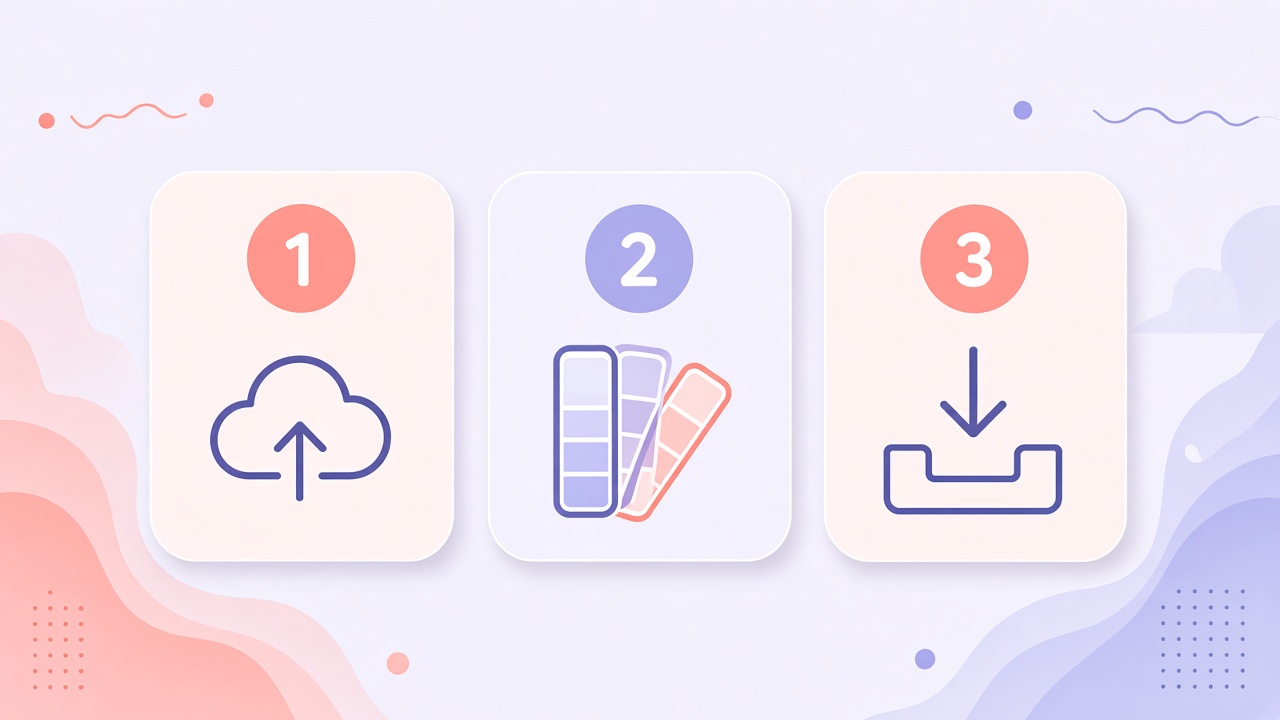
1. Upload the source
Go to the image converter. Drop PNG, JPG, WebP, or another supported file. Batch a folder when you are cleaning mixed screenshots.
2. Choose the target
Use JPEG for forms and email. Use PNG when you need a clear edge. Use WebP when you control a modern site. Use PDF when someone wants a one-page share file. More Formats covers GIF, TIFF, BMP, ICO, and Word.
3. Convert and download
ImageToolkit exports on the server and returns a downloadable file. Same-format picks are blocked so you do not waste a pass.
If the new file is still too large for a KB limit, finish with compress images without losing quality on the Compress tool. Need exact pixels for a banner? Use Resize before or after convert.
Convert WebP to JPG or WebP to PNG when uploads reject WebP
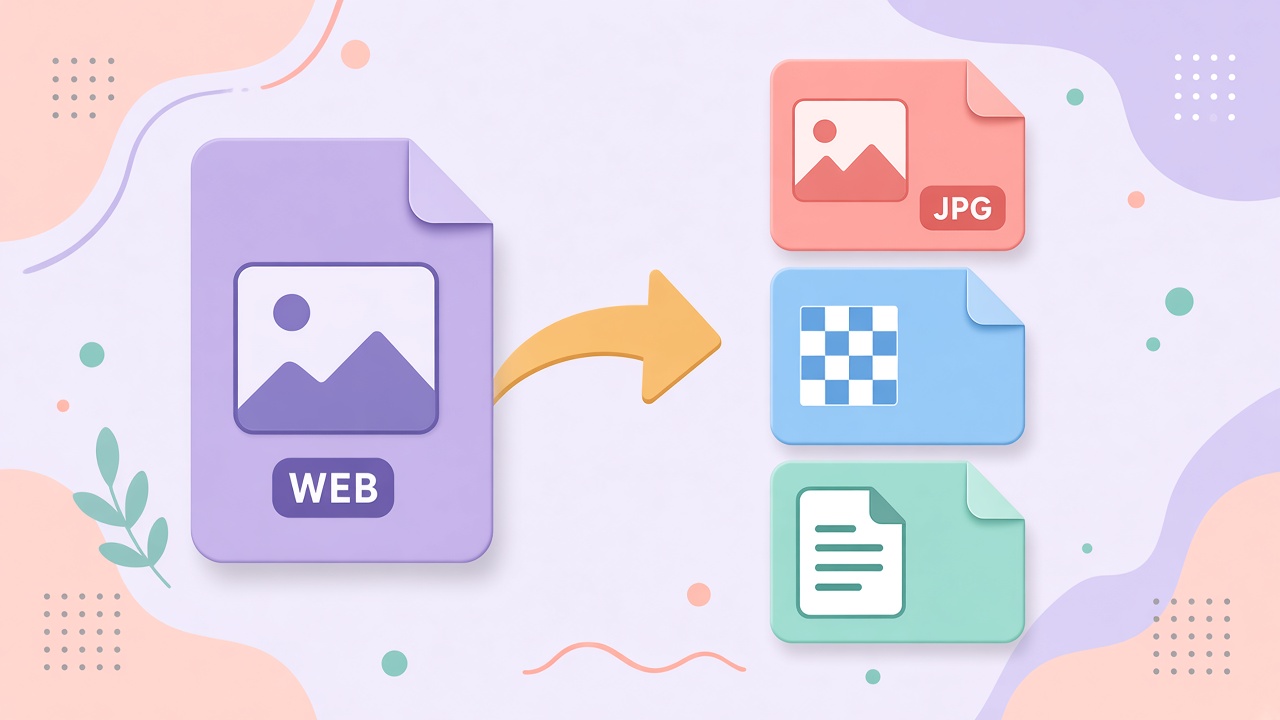
This is the highest-intent cluster in image conversion right now. Sites deliver WebP to save bandwidth. Your destination still wants JPG or PNG. That mismatch is why WebP to JPG and WebP to PNG dominate search volume.
WebP to JPG
Pick this when a form, printer queue, or older app must open the file. JPG is the compatibility safety net. You lose transparency if the WebP had any.
WebP to PNG
Pick this when you need sharp edges or a transparent master for design. PNG keeps alpha. The file may grow compared with a lossy WebP photo.
How to do it on ImageToolkit
Upload the WebP on Convert, choose JPEG or PNG, convert, download. If the JPG still carries camera location tags you do not want public, strip them with strip metadata.
For a privacy pass on faces inside a screenshot before you share it, use Pixelate — walkthrough in how to pixelate an image online.
How to convert PNG to JPG without wrecking the file
PNG to JPG is still the classic shrink-and-share move. Photos saved as PNG waste space. JPG cuts size for email, social, and portals that refuse large uploads.
Do convert PNG to JPG when
- The image is a photo or soft gradient
- Transparency does not matter
- A form or email client demands JPG
Do not convert PNG to JPG when
- The file is a logo or cutout with a clear background
- The shot is a UI screenshot full of small text
- You still need to edit edges later
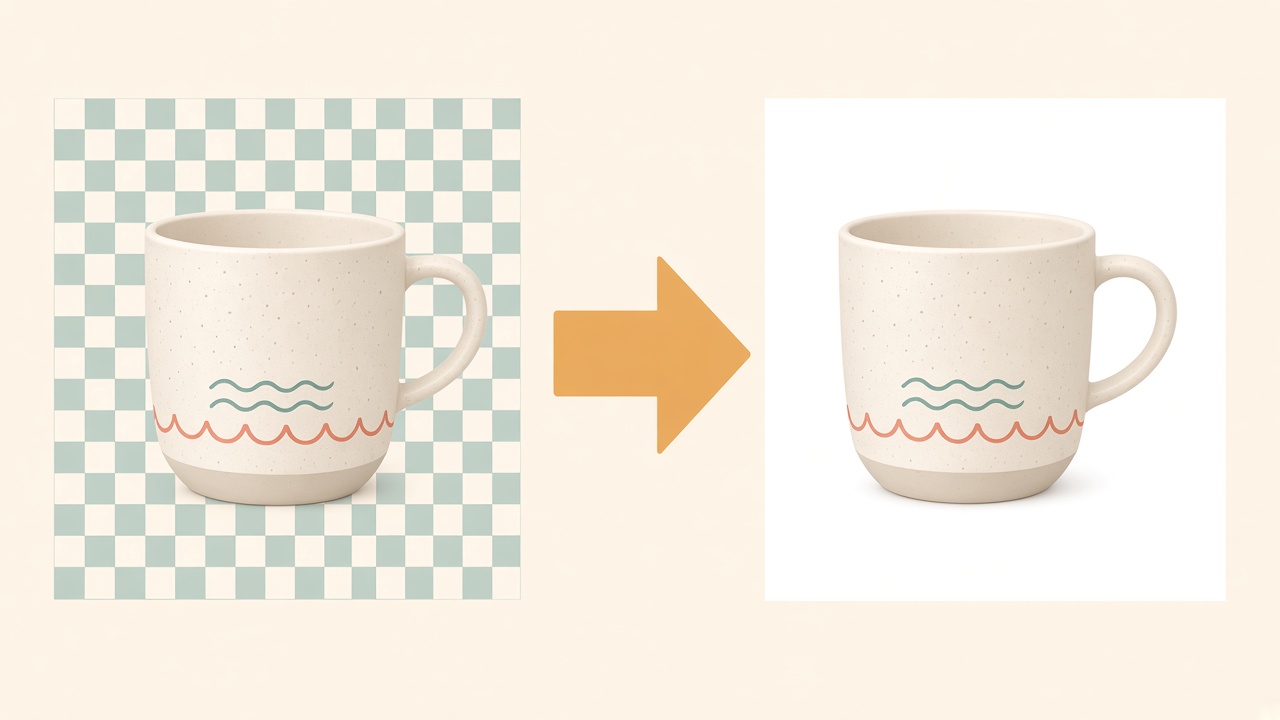
Transparent areas become a solid fill in JPG. Keep a PNG master if the clear edge is the product. For cutouts first, follow how to remove background for a transparent PNG on the Background Remover, then convert only if the storefront forces JPG.
After PNG to JPG, if you still miss a strict KB target, use Compress instead of converting again and again.
JPG to PNG and PNG to WebP when those directions help
Not every conversion should chase the biggest keyword. Direction still has to match the job.
JPG to PNG
Useful when you need a lossless container for further edits, or before you add transparency in a design tool. It does not restore quality the JPG already discarded. The PNG is often larger. If your goal is text from a scan instead of a format swap, use OCR — guide: extract text from an image.
PNG to WebP (or JPG to WebP)
Useful when you control the website and want smaller downloads with optional transparency. WebP is strong for LCP and bandwidth. It is weaker when the next human must upload into a legacy form — that person will search WebP to JPG again.
Image to PDF
Pick PDF on Convert when the deliverable is a one-page document, not a raw photo attachment.
Protect listing photos after convert with a light mark on Watermark.

Pick the right format before you hit convert
| Goal | Convert to | Why |
|---|---|---|
| Form or email upload | JPG | Widest compatibility |
| Undo a WebP download | JPG or PNG | Matches what older tools accept |
| Logo or cutout master | PNG or WebP | Keeps transparency |
| Faster site you control | WebP | Smaller at similar look |
| One-page share pack | Document, not a raw image |
Reference primer on what each type stores: MDN image types.
ImageToolkit Convert exports JPEG, PNG, WebP, GIF, TIFF, BMP, ICO, TGA, PCX, PPM, PDF, and Word from common image inputs. Browse the rest of the suite from all tools or the homepage.
Mistakes that keep you stuck in convert loops
- Converting WebP to JPG, then back to WebP, then to JPG again. Each lossy hop softens detail. Convert once from the best source.
- Expecting JPG to PNG to resurrect sharpness. It cannot.
- PNG to JPG on a transparent logo. You get a white box. Keep PNG or WebP.
- Shipping photo PNGs on a live site without converting. You pay for size you do not need.
- Using convert alone to hit a 50 KB portal cap. Format helps; a hard KB limit usually needs quality-first compression.
- Skipping resize on a 4000px hero that displays at 800px. Resize first, then convert.
Honest scope for ImageToolkit Convert: common raster inputs, server-side export, free on the tool page, no account required.

Key takeaways
- Convert image online when the destination rejects the container you have
- WebP to JPG and WebP to PNG fix the modern delivery vs legacy upload gap
- PNG to JPG shrinks photo PNGs for forms and email — not for transparent logos
- ImageToolkit Convert covers JPEG, PNG, WebP, PDF, and more in one free flow
- Pair with Compress, Resize, Background Remover, or strip metadata when the next step needs it
- Keep reading: compress without losing quality, transparent PNG cutouts, OCR text from images, pixelate for privacy
Frequently asked questions
How do I convert an image online for free?
Open ImageToolkit Convert, upload your file, pick JPEG, PNG, WebP, PDF, or another target, convert, and download. No account and no watermark.
How do I convert WebP to JPG?
Upload the WebP, choose JPEG, convert, and download. Use this when a form or older app rejects WebP. Transparency will not survive.
How do I convert WebP to PNG?
Upload the WebP, choose PNG, convert, and download. Prefer PNG when you need sharp edges or a transparent master.
How do I convert PNG to JPG?
Upload the PNG, choose JPEG, convert, and download. Best for photos. Transparent areas become a solid fill.
How do I convert JPG to PNG?
Upload the JPG, choose PNG, convert, and download. This does not restore quality already lost in the JPG.
Should I convert PNG to WebP for my website?
Yes when you control a modern site and want smaller files with optional transparency. Keep JPG as a fallback for tools that still reject WebP.
Does PNG to JPG keep transparency?
No. JPG has no alpha channel. Stay on PNG or convert to WebP if you need a clear background.
Can I convert an image to PDF with ImageToolkit?
Yes. Choose PDF on the Convert tool, run the conversion, and download the document version of your image.