6 min read · September 23, 2026
Extract Text from an Image Free — OCR Image to Text Online
Extract text from an image free with OCR. Use this image to text converter to copy text from images, pictures, JPG screenshots, and scans — no signup, download as .txt.
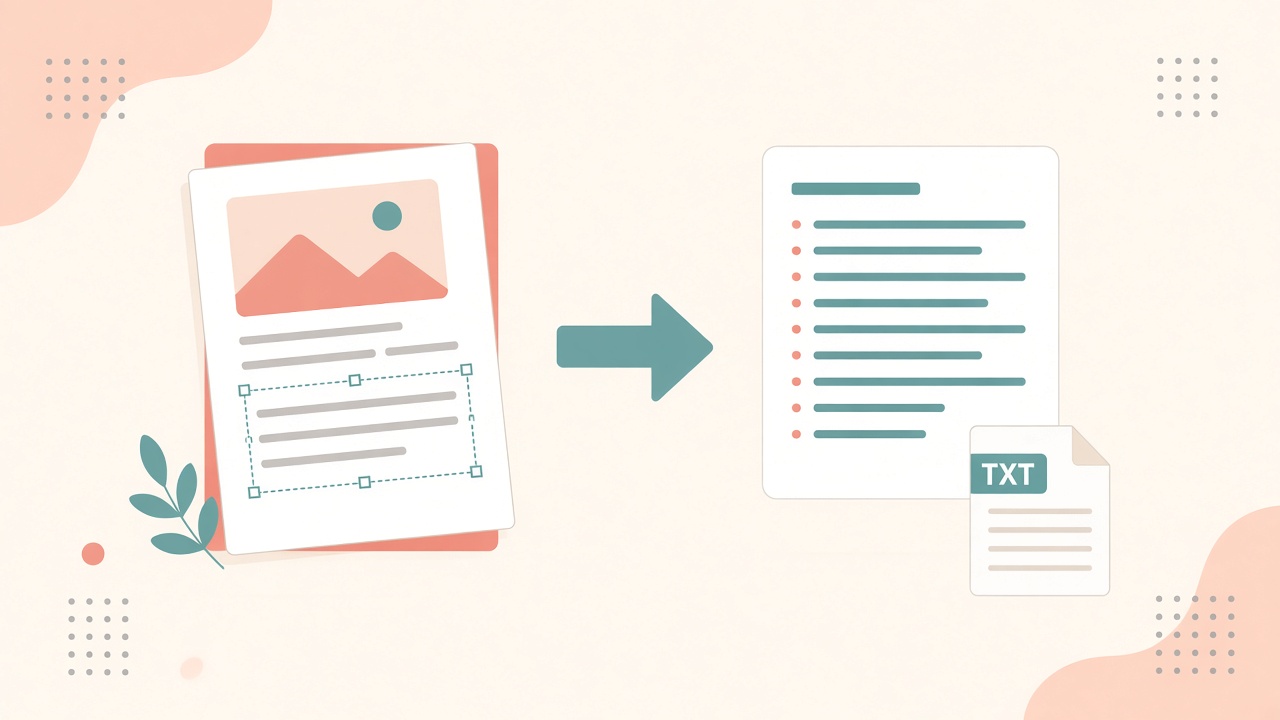
Why you need to extract text from an image
You have a screenshot you can't select. A phone photo to text job for a printed form. A scan of notes that only exist as pixels. Retyping that content is slow, and mistakes creep in.
That is why people search to extract text from an image, run image to text, or copy text from image files without installing software.
Quick answer: An image to text converter (OCR — optical character recognition) turns letter shapes in a picture into plain text you can copy, search, and edit. For clear printed English, OCR online is usually enough: upload the image, run recognition, then copy text from the image or download a `.txt` file.
Below is a practical workflow you can reuse, plus how ImageToolkit's free OCR tool helps you extract text from picture files, screenshots, and clear printed photos.
"### Crop before you upload"
What is an image to text converter (OCR)?
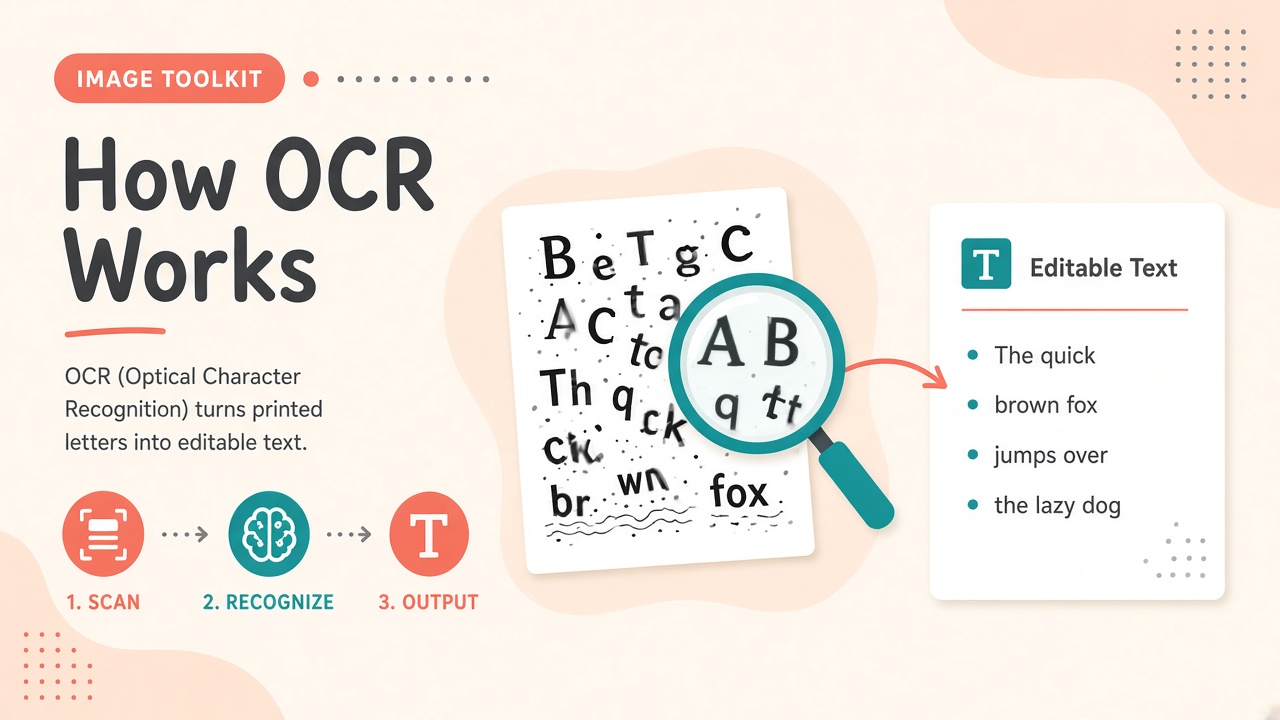
OCR stands for optical character recognition. An image to text tool looks at a photo or scan, finds regions that look like text, and maps those shapes to characters — so you can convert image to text instead of retyping.
People also call this a text from image extractor, picture to text tool, or JPG to text converter when the upload is a photo file.
What matters in practice:
- Screenshots of UI text are often easy because the letters are sharp
- Clean scans of printed pages usually work well when you scan text from image sources
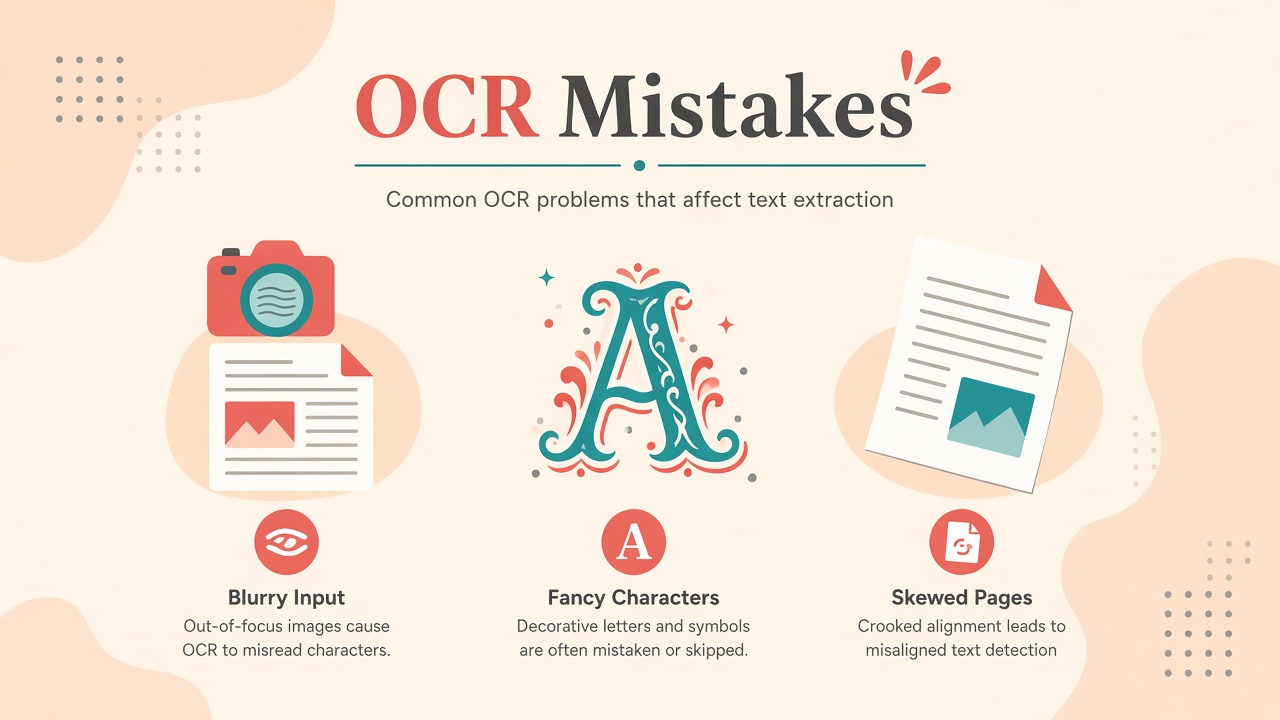
- Blurry phone photos, skewed pages, and decorative fonts make recognition harder
ImageToolkit runs OCR on the server with Tesseract configured for English. You get plain text for the clipboard or a `.txt` download. It is built for readable English in screenshots, scans, and clear printed photos — not as a handwriting studio or multi-language suite.
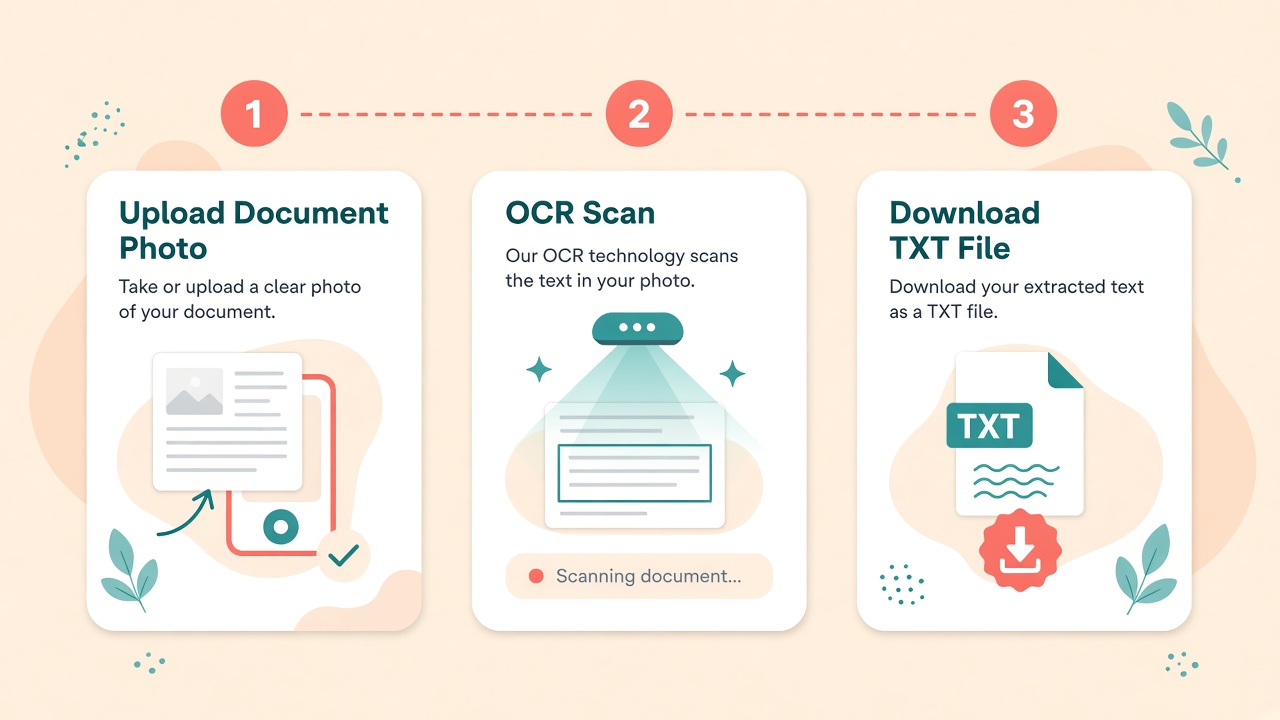
How to extract text from an image online (3 steps)
Here is the same flow ImageToolkit uses on the free OCR online / image to text page.
Step 1: Upload a clear image
Upload a scan, screenshot, JPG, or photo that contains readable English text. Keep the file under 15 MB. This is the start of any convert image to text job.
Step 2: Run OCR
Start the server pass. ImageToolkit processes the image and returns plain text — your text from image extractor result.
Step 3: Copy text from image or download
Review the result, copy text from image to your clipboard, or download a `.txt` file for notes later.
No desktop OCR app install is required.
If the text is tiny inside a large frame, crop or resize first so the letters fill more of the image. A sharp original almost always beats a second-generation photo of a screen.
What images work best for image to text OCR
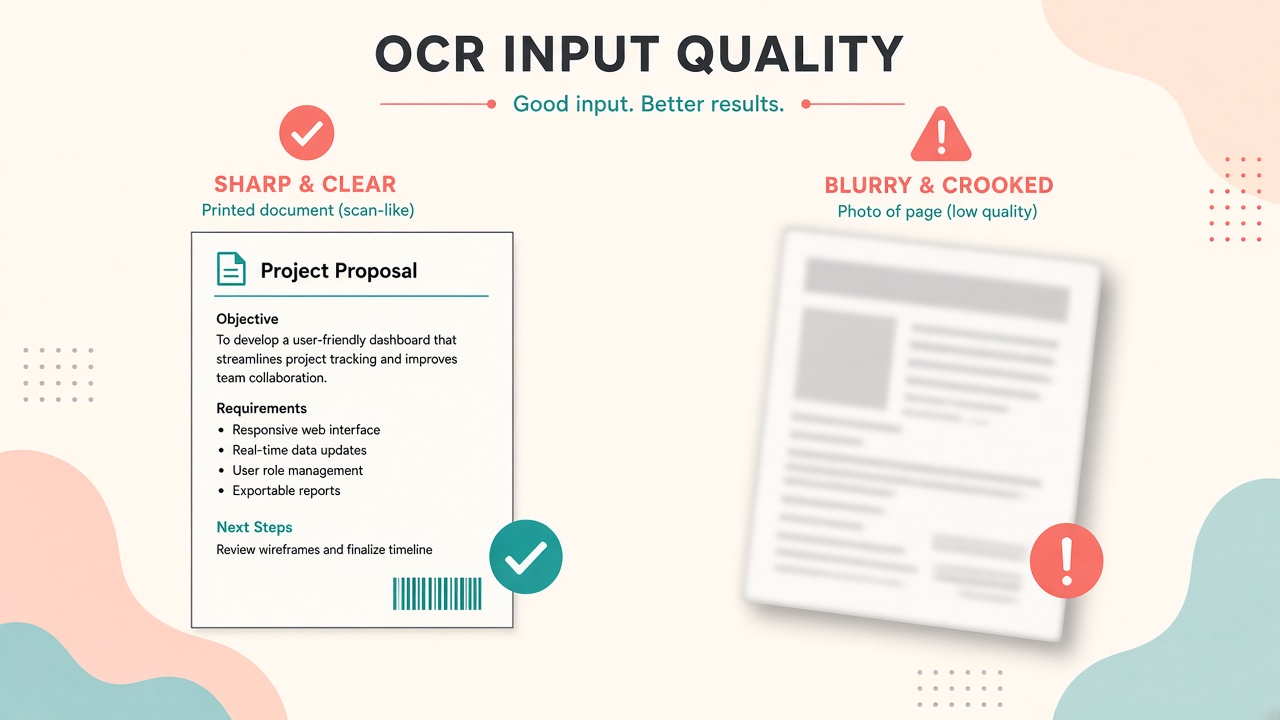
Sharp, high-contrast scans and screenshots perform best when you extract text from image files. Quality drops when the image is blurry, low contrast, skewed, heavily compressed, or filled with decorative lettering.
Quick checklist before you upload
- Prefer a direct screenshot over a photo of a monitor when you need to extract text from screenshot content
- Keep the page straight; big rotation hurts line reading
- Use dark text on a light background (or the reverse) with clear contrast
- Upload the full-resolution file, not a tiny compressed preview
Input type comparison
| Input type | Usually works well? | Why |
|---|---|---|
| App or browser screenshot | Yes | Sharp, high-contrast rendered text |
| Clean document scan | Yes | Printed English with even lighting |
| Photo / picture of a printed page | Sometimes | Needs focus, lighting, and less skew |
| JPG or PNG of UI text | Yes | Common JPG to text / picture to text case |
| Decorative or stylized fonts | Often poor | Shapes do not match normal letter models |
| Messy handwriting | Unreliable | This tool is tuned for printed English |
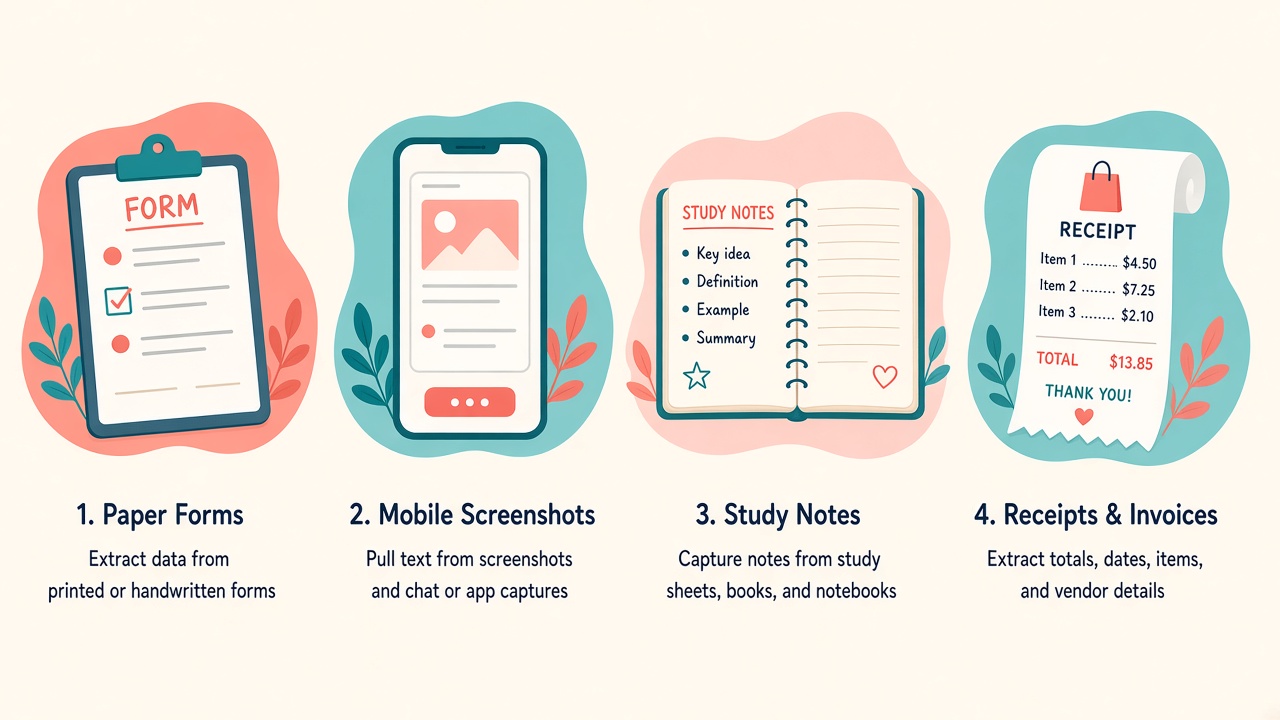
When people use OCR to convert image to text
These match the everyday jobs listed on the ImageToolkit OCR page — the same jobs behind searches like extract text from picture and text from picture.
Scanned forms
Capture printed fields without typing every line.
Screenshots
Turn UI or chat text into searchable notes when copy-paste is blocked — classic extract text from screenshot work.
Study notes
Extract wording from lecture slides or photos of printed pages (photo to text).
Receipts
Pull totals and line items into a plain text file for later search.
After extraction, clean spacing in your notes app if needed. If a scan is too large for email, compress carefully using compressing images without losing quality or an exact KB target. Need another image format first? Use the image converter.
Tips for cleaner OCR and picture to text results
Crop before you upload
Crop to the text region so the engine is not distracted by desks, wallpaper, or UI chrome — the fastest upgrade for picture to text accuracy.
Straighten crooked pages
A few degrees of skew is fine. Large rotation usually hurts recognition when you scan text from image photos.
Improve contrast only when it helps
Grayscale can help some photos. Do not crush detail. ImageToolkit's grayscale tool is useful when contrast is the issue.
Expect English printed text
This tool is tuned for readable English. That matches screenshots, scans, and clear printed photos on the product page.
Proofread names and numbers
OCR can mix 0 and O, or similar shapes. Always check prices, IDs, and dates after you copy text from image results.
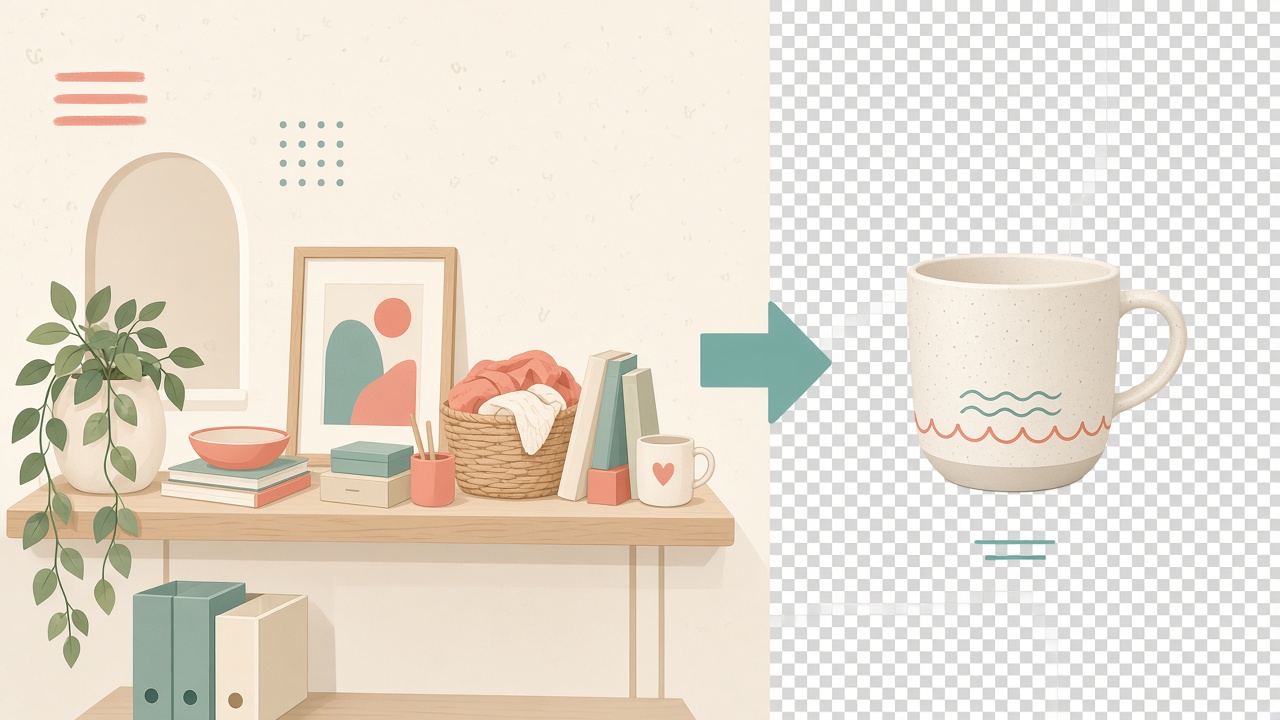
If your goal is a cutout for design — not text — use the background remover guide instead.
Common OCR mistakes and limitations
Avoid these traps when you try to convert image to text:
- Expecting perfect results from a blurry phone snap
- Feeding stylized logo fonts and assuming every character will match
- Skipping review on prices, IDs, and dates
- Confusing OCR with translation (recognition keeps the language already in the image)
- Assuming handwriting will behave like printed text
Honest limits for ImageToolkit OCR online:
- English-focused printed text
- Server-side Tesseract processing
- Uploads up to 15 MB
- Free to use on the tool page with no account and no watermark
It will not magically fix a bad source image. Better input still beats hoping the engine invents missing detail.
When the source is ready, open the free image to text / OCR text extractor, upload, run, and save the `.txt` output.
Key takeaways
- Extract text from an image with free OCR online when you need editable copy from screenshots, scans, or clear printed photos
- An image to text converter helps you copy text from image and picture to text jobs without retyping
- Sharp, high-contrast English text gives the most usable JPG to text / photo to text results
- Review numbers and names before you trust the output
- ImageToolkit OCR returns clipboard text or a `.txt` file after a server-side English Tesseract pass
- Start on the free ImageToolkit OCR tool, then browse more utilities from the homepage or all tools
Frequently asked questions
What is OCR / an image to text converter?
OCR (optical character recognition) is what powers an image to text converter. It turns letter shapes in a photo, scan, or screenshot into editable digital text you can copy or save as a .txt file.
How do I extract text from an image online free?
Upload a clear image with readable English text to a free OCR online tool, run recognition, then copy or download the result. On ImageToolkit, open OCR, upload up to 15 MB, run the server pass, and copy or save a .txt file — no account and no watermark.
How do I copy text from an image?
Run OCR on the image first, then use Copy on the extracted result. ImageToolkit returns plain text you can paste into notes, docs, or chat after the server pass finishes.
How do I convert image to text or JPG to text?
Upload a JPG, PNG, or similar image that contains readable printed English, run the image to text / OCR pass, then copy the output or download .txt. Blurry or decorative lettering usually needs a clearer source first.
Can I extract text from a picture or screenshot?
Yes. Extract text from picture files and screenshots works best when the letters are sharp and high contrast. Screenshots are often among the best inputs; phone photos need good lighting and less skew.
Can OCR read scanned documents?
Clear scans of printed English usually work well when you scan text from image pages. Skewed, dark, or heavily compressed scans produce more mistakes, so straighten and improve contrast when you can.
Why does OCR make mistakes?
OCR guesses characters from pixel shapes. Blur, low contrast, skew, compression artifacts, and unusual fonts all increase errors. Always proofread important values after picture to text conversion.
Can ImageToolkit OCR recognize handwriting?
The tool is tuned for readable English printed text in screenshots, scans, and clear printed photos. Handwriting is unreliable for this workflow and is not presented as a supported specialty on the tool page.
Do I need to install OCR software?
No. ImageToolkit runs OCR online on the server. Upload an image with readable text, then copy text from image results or download .txt without installing a desktop OCR app.