
7 min read · September 27, 2026
How to Make a Photo Collage Online Free Without Watermarks
Make a photo collage online free with no watermark or sign-up. 33 layouts for 2-16 photos, auto layouts, gap and background controls, and a clean PNG download.
One photo was never going to be enough
The trip is over and the camera roll holds ninety photos of the same three days. Your sister wants a birthday post, the team needs an event recap, and the visa form next to the family photos has other plans. Uploading one picture at a time tells none of those stories.
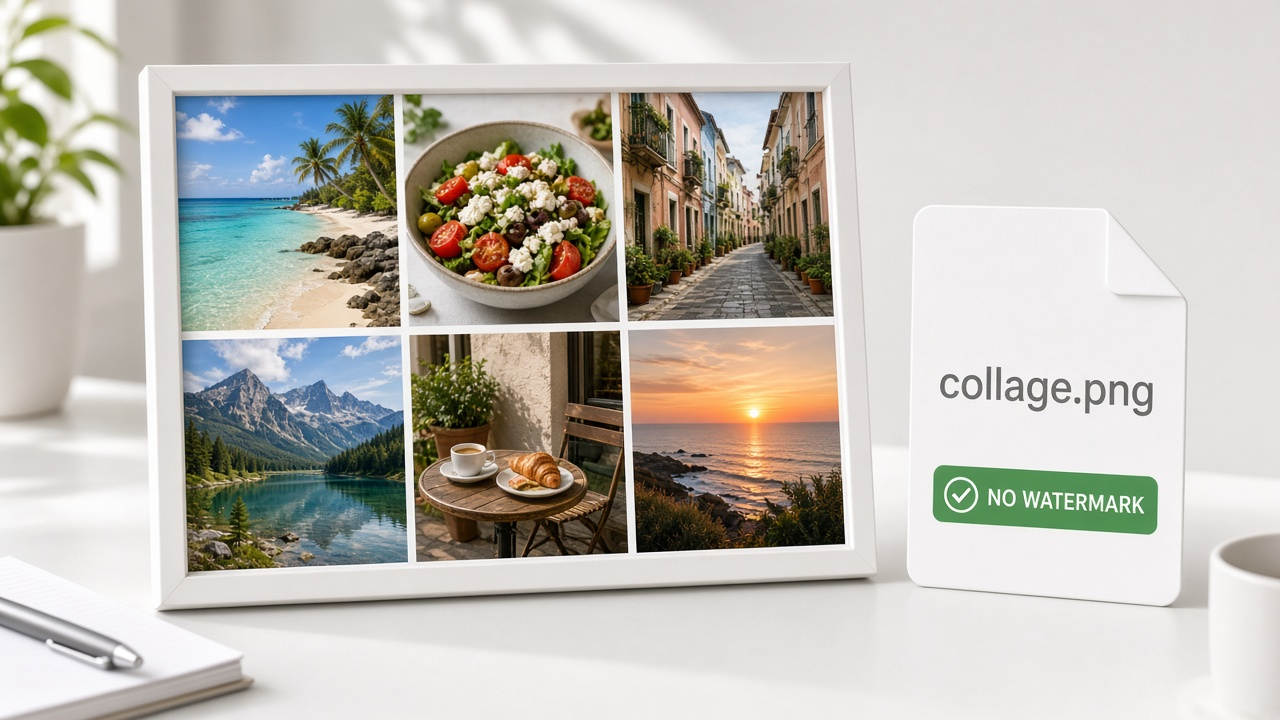
Quick answer: open a browser tool, drop in 2 to 16 photos, pick a layout, and download one combined image. On ImageToolkit's free collage maker that takes about a minute, and the download carries no watermark, no sign-up, and no hidden export fee. The guide below walks through the five steps, explains which layouts fit which photo counts, and covers the small settings — gap, margin, background — that separate a tidy collage from a cramped one.
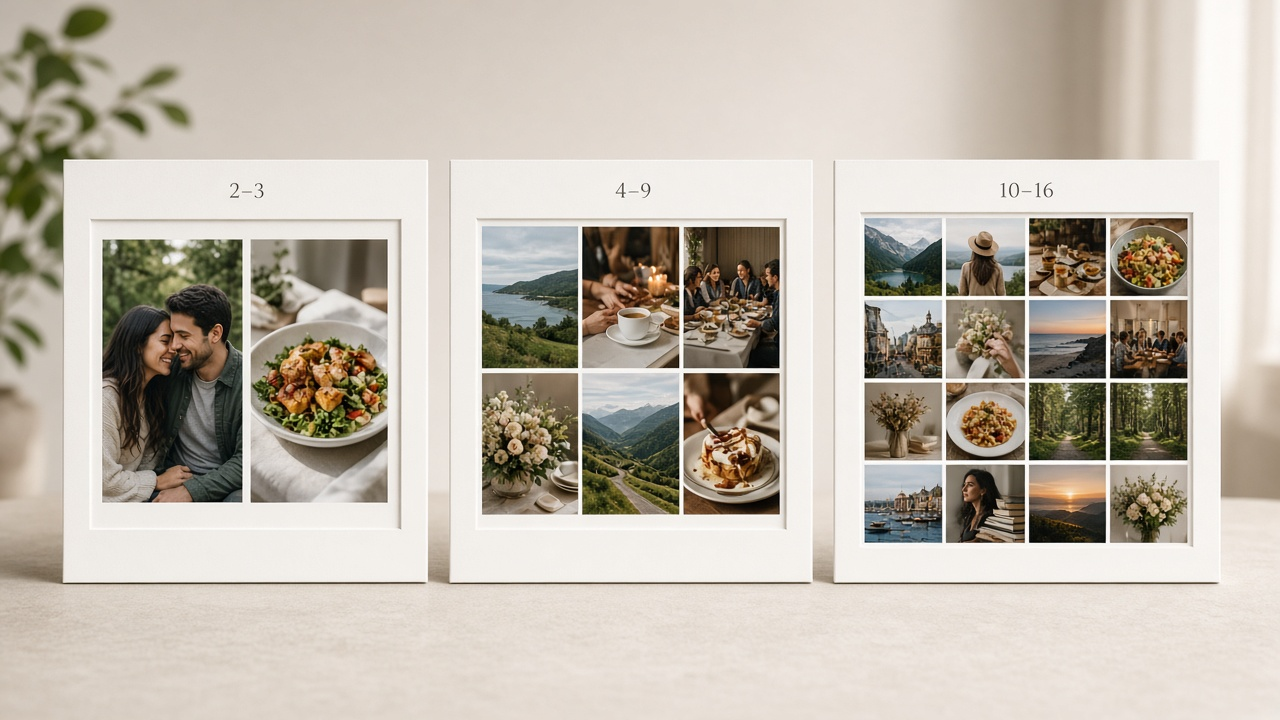
"Let the photo count pick the layout: 2–3 side by side, 4–9 in small grids, 10–16 in mosaics — or hand the decision to Auto Layout."
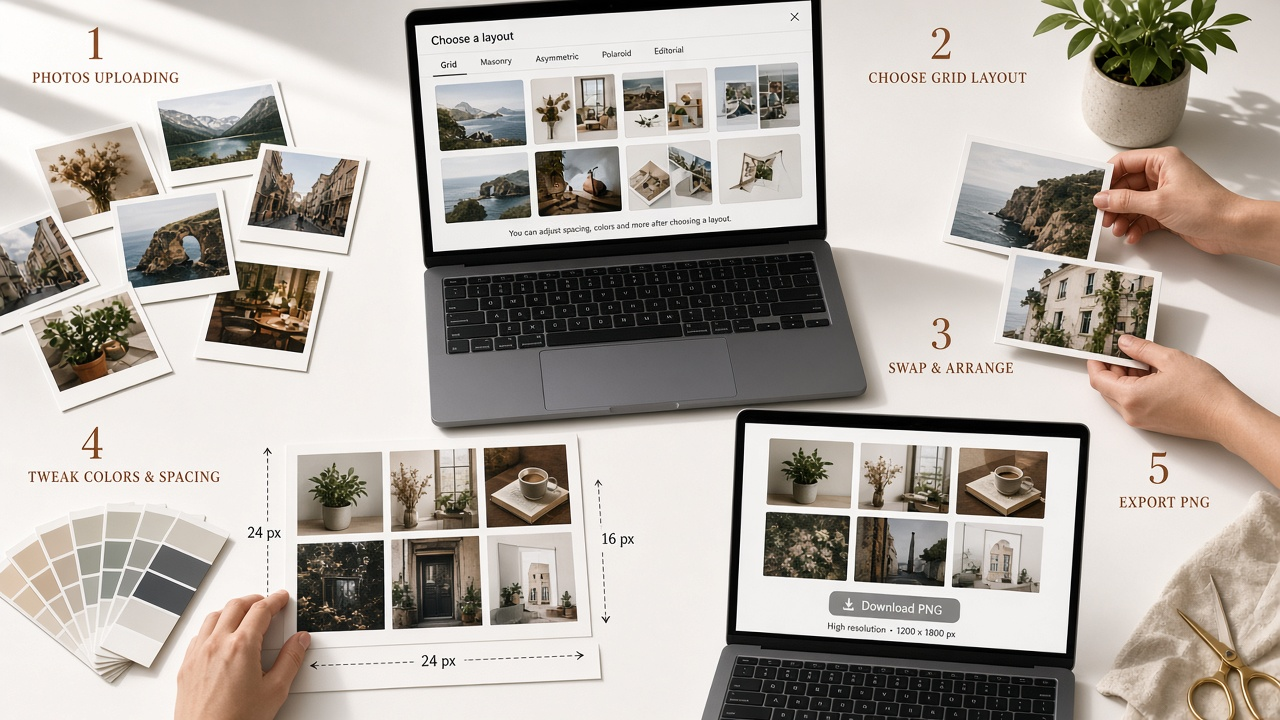
How to make a photo collage online in 5 steps
1. Upload your photos
Open the collage tool and add between 2 and 16 pictures. Mixed sizes and aspect ratios are fine — each cell crops and fits its photo automatically, so a tall phone shot can sit next to a square screenshot without any prep.
2. Pick a layout
Choose from 33 templates: classic grids, mosaics, heart and family layouts, polaroid frames, travel strips, and more. Not sure which fits? Auto Layout reads your photo count and builds a grid around it.
3. Arrange the photos
Drag any photo onto another to swap their positions. Zoom or pan inside a cell to fix the crop, resize the dividers when one photo deserves more room, and merge cells when you want a big hero shot with smaller supporting photos around it.
4. Customize the frame
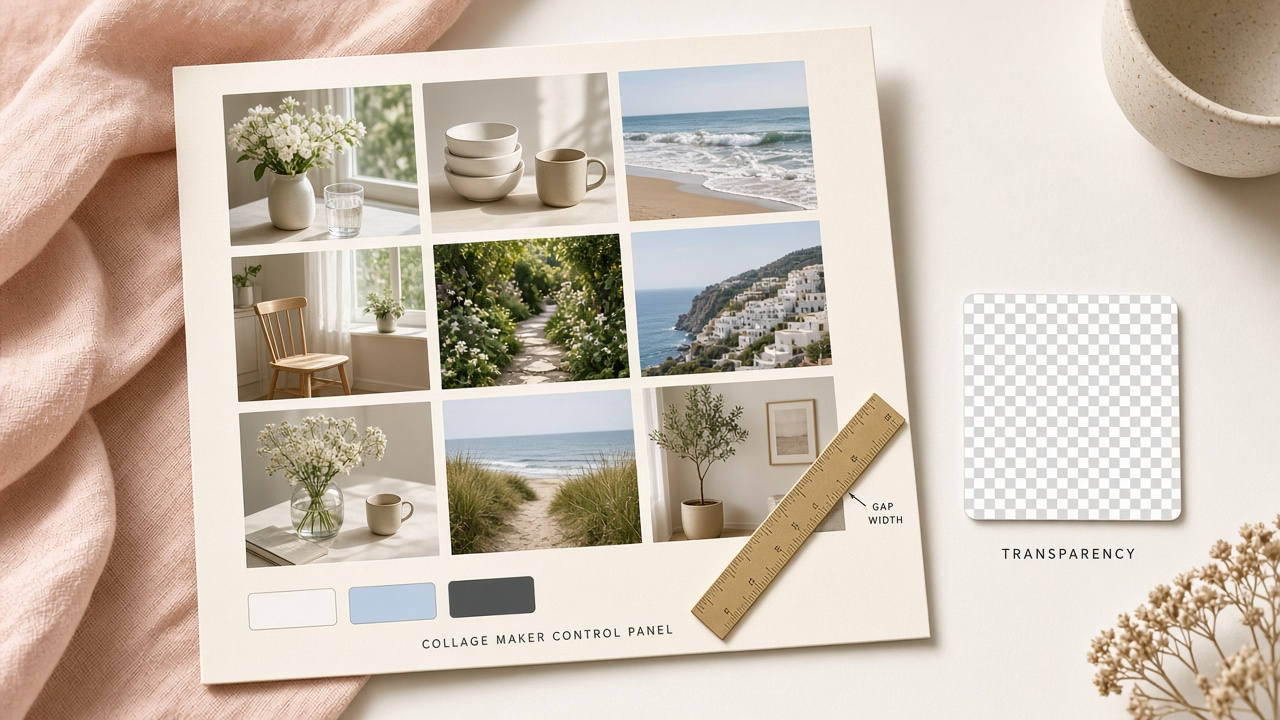
Set the gap between photos, add an outer margin, pick a background color, or make the background transparent if the collage is heading into a design. The live preview updates as you move each control, so there is no guessing.
5. Download the PNG
Hit download and save the finished file. It is a real PNG at full resolution, free of watermarks, and nothing sits behind a create-an-account wall first.
Pick a collage layout that fits your photo count
The fastest way to ruin a collage is to force fifteen photos into a grid built for four. Every cell shrinks until faces turn into thumbnails and the whole thing reads as wallpaper. The photo count should choose the layout, not the other way around.
| Photos | Layout that works | Best for |
|---|---|---|
| 2 – 3 | Side by side, or one hero + accent | Before-and-after shots, comparisons |
| 4 – 9 | 2 × 2, 3 × 3, or hero + small grid | Event recaps, product sets, family posts |
| 10 – 16 | 4 × 4 and mosaics | Trips, year reviews, full albums |
If you hate counting cells, Auto Layout does the math for you: it reads how many photos you uploaded and picks a grid that holds them all without strangling any single image. Start there, then switch to a named template once you can see the shape you want.
A quick tour of the 33 templates
The templates sort into eight families, and each family exists because a different job asked for it.
Classic grids are the dependable ones: clean 2 × 2, 3 × 3, and 4 × 4 arrangements where every photo gets equal billing. Creative mosaics break the symmetry with one large cell and smaller companions, which suits a set where one picture clearly leads. Love & Family holds the heart-shaped collage and couple layouts — the ones people go looking for around anniversaries and Valentine's Day. Polaroid frames wrap each photo in a thick white border, instant-camera style, and they flatter casual snapshots better than any grid.
The remaining families map to occasions: Social Media layouts cut to platform-friendly shapes, Travel arranges photos like a trip recap, Celebration suits birthdays and parties, and Minimal keeps things to a couple of frames with generous breathing room. Browsing by category is faster than scrolling all 33, because you usually already know the job — you just didn't know it had a name.

Make it yours: gap, margin, background, and swaps
Two sliders do most of the design work here. The gap is the space between photos; the margin is the space around the whole set. Tight gaps make a collage feel like one stitched panorama, wider gaps give every photo its own frame. If the result looks noisy, increase the margin before touching anything else — breathing room reads as intentional.
The background does more work than it gets credit for. White suits prints and documents, a color can tie mismatched photos together, and a transparent background lets the collage drop into a slide, a thumbnail, or a product page with no box around it. One honest note: a transparent download only makes sense as PNG, which is exactly what the tool exports.
The arrangement tools are where a collage stops looking accidental. Swap two photos by dragging one onto the other, nudge the dividers when a landscape shot deserves more width, and merge cells for a big center picture with smaller ones orbiting it. None of it needs a tutorial — the preview shows every change as you make it.
Collage ideas for the moments that actually happen
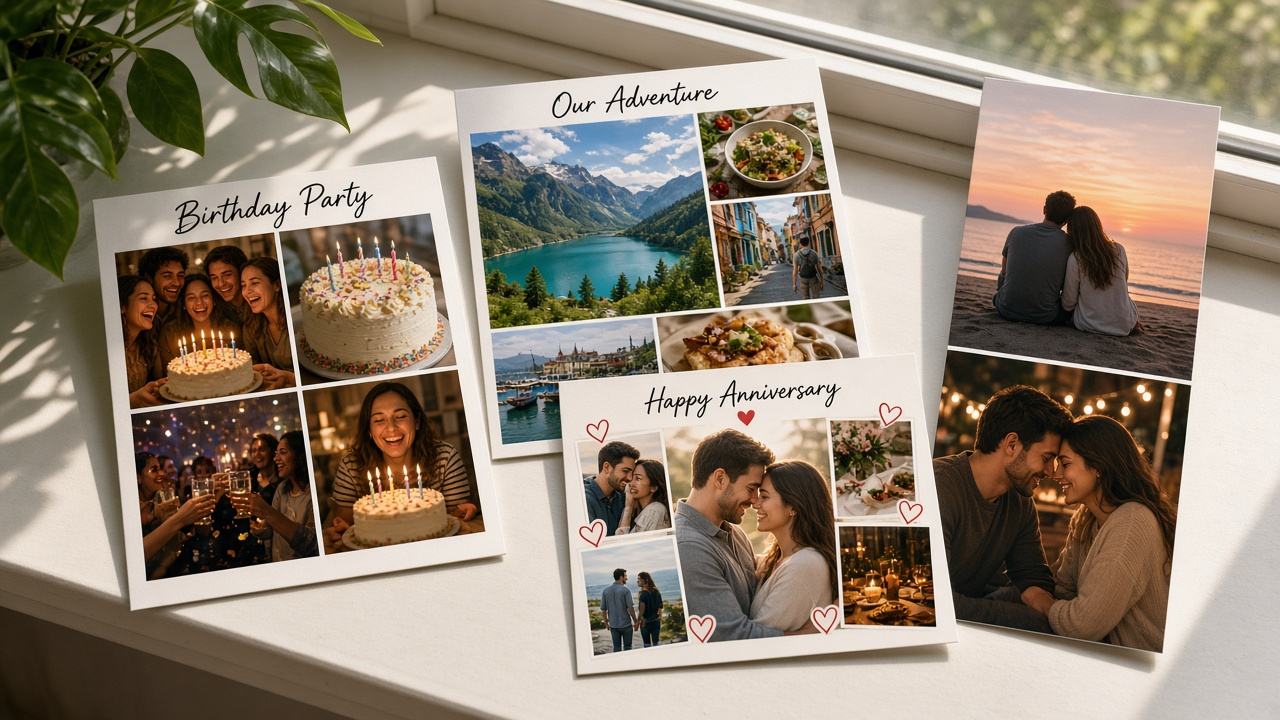
Birthdays are the classic excuse. A 2 × 2 or 3 × 3 grid mixing cake, candles, and the people works better than a dozen separate stories, and the Celebration layouts lean into it with room for the chaotic group shot.
Travel collages earn their keep as trip recaps: one wide landscape hero with smaller food, street, and detail shots around it — the shape the Travel templates follow. For couples, the heart layout turns two portraits and a handful of shared moments into an anniversary-ready frame. Family year-in-review sets use the bigger grids; one cell per month reads beautifully in a 4 × 4.
For Instagram, shape matters more than style. A story collage wants a tall 1080 × 1920 canvas and a two-photo stack, while a post wants a square or 4:5 grid. If the template you like is close but not exact, build it here and then set the final dimensions with the resize workflow so the platform never crops your edges for you.
Mistakes that make collages look messy
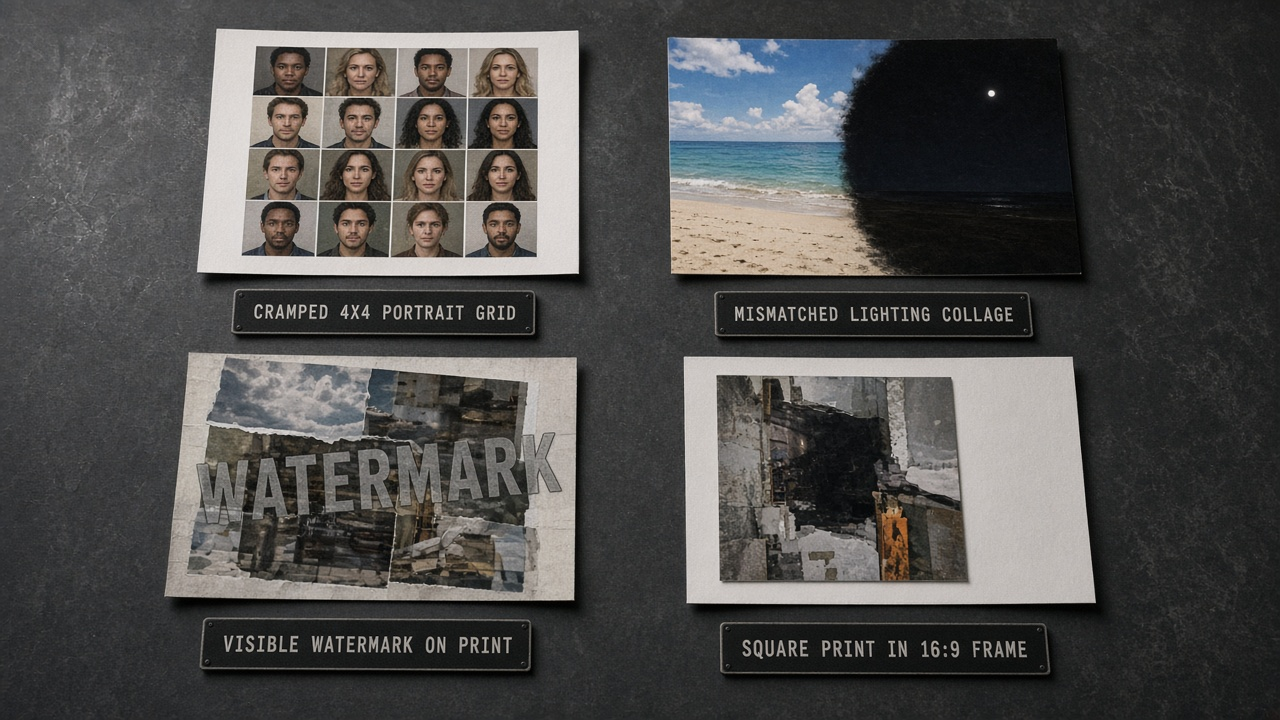
Cramming is the big one. Sixteen photos in a 4 × 4 grid can work when every shot is a wide landscape, but sixteen portraits turn into a wall of tiny faces. If the grid feels suffocating, merge two cells for a hero photo or drop the weakest shots — a collage of ten good photos beats sixteen crowded ones every time.
Mixed lighting is the quiet one. A bright beach photo next to a dark night shot makes the dark cell look like a hole in the layout. You do not need matching photos, just a similar mood; move the dark image to a corner, or pick a template where it sits beside another warm shot.
Then there is the export trap. Plenty of free collage makers let you build the whole thing and then stamp the download with a watermark unless you pay or sign in. Check for that before you invest twenty minutes in arranging — or just use a tool that does not do it, which is half the reason this one skips the watermark and the account.
The last mistake is shipping the wrong shape: a square collage squeezed into a wide header, or a tall story board cropped into a post. Fix the ratio before downloading, not after, because stretching to fit afterward bends every face in the grid.
Key takeaways
- Let the photo count pick the layout: 2–3 side by side, 4–9 in small grids, 10–16 in mosaics — or hand the decision to Auto Layout.
- Gap sets the rhythm, margin sets the calm, and a transparent background drops the collage straight into other designs.
- Drag to swap, merge cells for a hero shot, and fix the aspect ratio before you download.
- The ImageToolkit collage maker is free, needs no account, and exports a watermark-free PNG.
- A heavy collage coming out larger than you need? The quality-first compression workflow trims it without wrecking it.
- Keep reading: resize to exact dimensions, convert image formats, transparent PNG cutouts, OCR text extraction, or pixelate for privacy.
Frequently asked questions
How can I make a photo collage online for free without a watermark?
Use a tool that treats the download as the product, not the paywall. On ImageToolkit's collage maker you upload 2 to 16 photos, pick one of 33 layouts, and download a full-resolution PNG with no watermark, no sign-up, and no export limit.
How do I make a collage with 6 photos?
A 2 × 3 or 3 × 2 grid gives six photos equal weight, and a mosaic with one hero cell plus five smaller ones works when one picture leads the story. Upload the six photos, let Auto Layout pick a grid, then swap photos by dragging until the balance looks right.
What is the best photo collage layout for 4 pictures?
A 2 × 2 grid when all four photos matter equally, or a one-big-plus-three mosaic when one deserves the spotlight. Both are one click away in the Classic and Creative template families.
How do I put two pictures side by side for free?
A two-photo collage is the simplest layout there is. Upload both pictures to the collage tool, pick the 1 × 2 template, adjust the divider if one photo deserves more width, and download the PNG — free, no watermark.
Can I make a photo collage without downloading an app?
Yes. The whole workflow runs in the browser: upload, arrange, customize, and download. Nothing to install, and it works on a phone as well as a desktop because the editor and the download are the same on both.
How many photos can I put in one collage?
Up to 16. Grids top out at 6 × 6 in the editor, and mosaics let you mix one large photo with a dozen smaller cells. Empty slots stay blank until you fill them, so you can start with fewer photos and add more later.
Can I make a collage with a transparent background?
Yes. Set the background to transparent and the space between and around photos exports clear instead of white. It only reads as transparency in PNG, which is the format the tool downloads anyway.
What size should a photo collage be for Instagram?
Stories want 1080 × 1920, posts work best square (1080 × 1080) or 4:5. Build the collage in a matching template, then lock the exact pixels with a resize pass before posting so the platform never crops it for you.