6 min read · September 23, 2026
Download Images from a URL Online Free — Image Downloader Guide
Download images from a URL online free. Use this image downloader to extract images from a webpage, download by link, preview the set, and save one file or a ZIP.
Why people need to download images from a URL
You open a public gallery, product page, or mood board. Saving every photo by hand means right-click, save, next file, again. On a long page that gets old fast.
That is why people search for ways to download images from a URL, run an image download by link, or use a free image downloader that previews the set first.
Quick answer: Paste a public page, board, or direct image link into an online extractor, preview what it finds, pick the files you need, then download one image or a ZIP. No browser extension install is required for ImageToolkit's flow.
This guide covers a practical download images from website workflow, where Single / Bulk / Board modes fit, and how ImageToolkit's Image Downloader stays honest about public URLs only — free, no account, no watermark.
"Download images from a URL online when right-click saving is too slow for a public gallery or board"
What an image downloader from URL actually does
An image downloader online is not magic. It fetches a public http/https address on the server, looks for image resources the page exposes, then shows you a preview set so you can extract images from webpage content without hunting every thumbnail yourself.
People also call this image download from link, photo download by link, or download image from URL when the paste is a direct file address.
What ImageToolkit supports in practice:
- Public page, gallery, board, collection, or direct image URL
- Preview before you commit to a download
- One selected file alone, or multiple selections as a ZIP
- Server-side fetch and extract (not a desktop scraper install)
What it does not claim:
- Login walls, paid pages, or private albums
- Sites that hide image sources behind auth
- Unlimited crawls of the entire internet

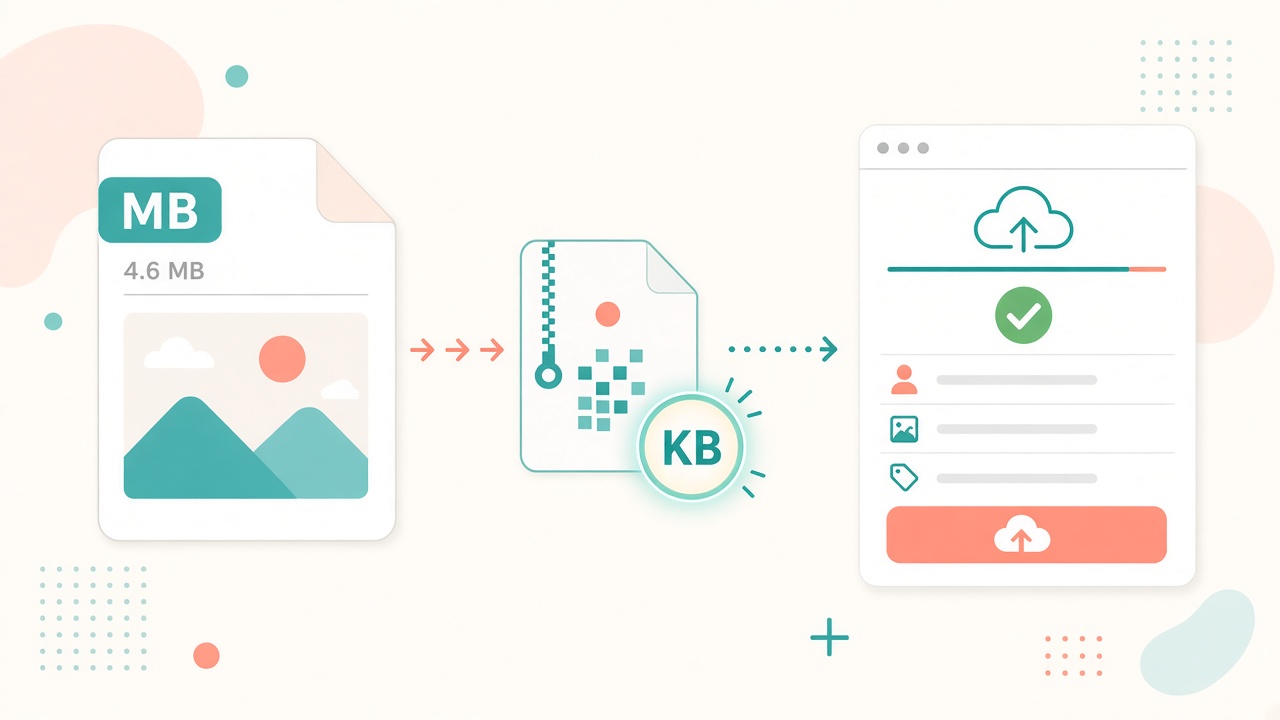
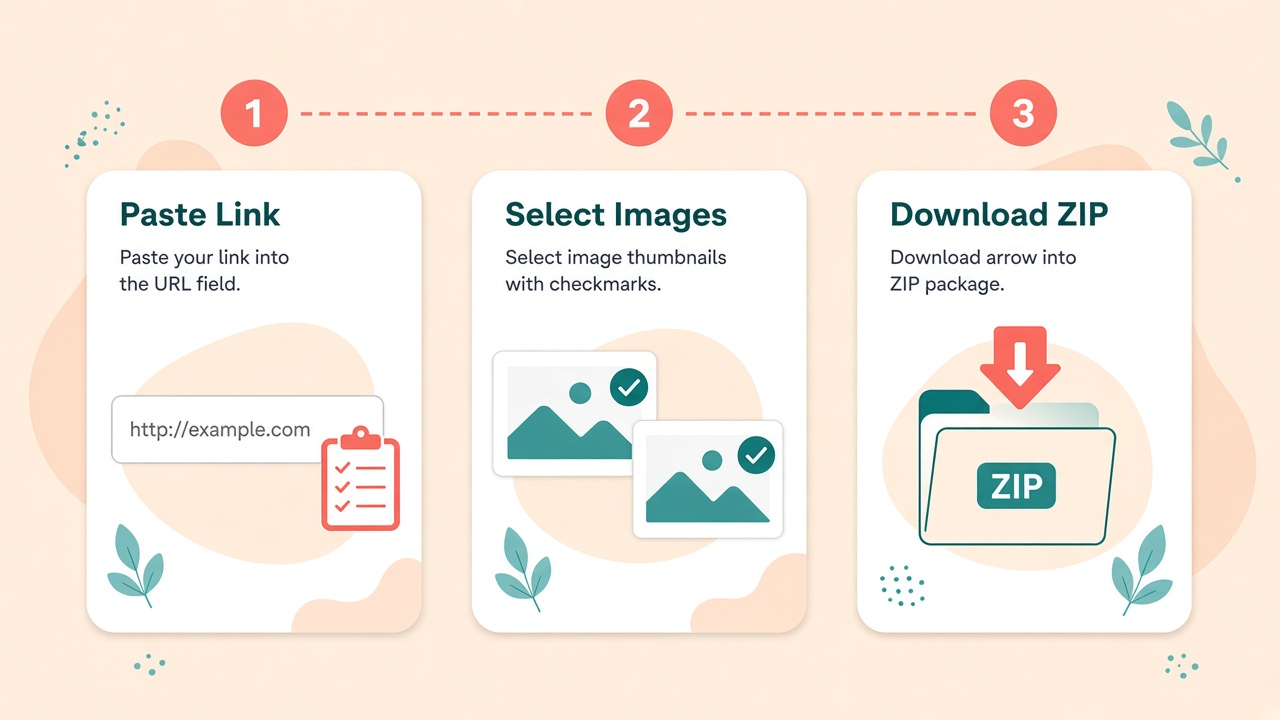
How to download images from a URL online (3 steps)
Here is the same flow ImageToolkit uses on the free Image Downloader page.
Step 1: Paste a public URL
Paste a public page, board, collection, or direct image link. This is the start of any download images from URL job.
Step 2: Pick the images
Review the detected preview set. Keep the shots that matter; skip icons and noise when you can.
Step 3: Download or ZIP
Save one selected image alone, or select several and download a ZIP package from the session.
No account is required. No watermark is added by ImageToolkit on this tool page.
If a board is slow, you can cancel from the UI. Remote fetches use a short per-request timeout (about 10 seconds). Full extract jobs allow a longer window on the order of three minutes.
Single, Bulk, and Board modes explained
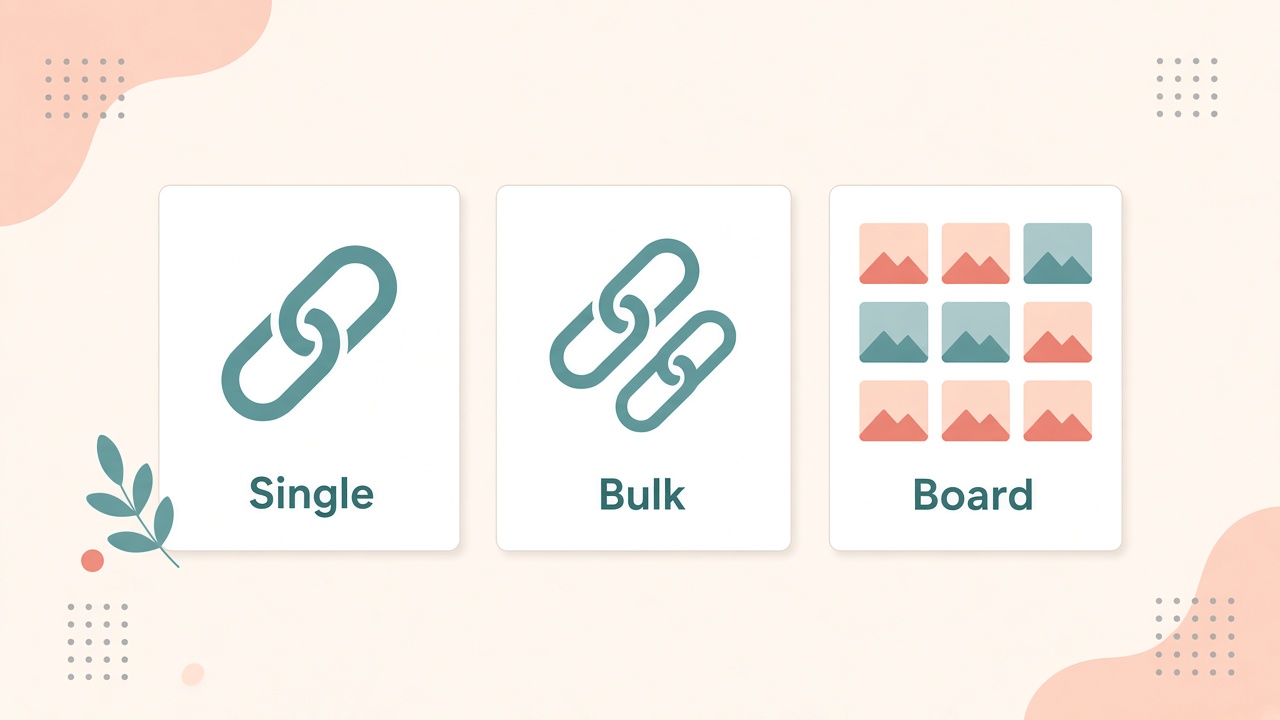
ImageToolkit exposes three UI paths. They share the same idea — public URLs only — but they fit different paste jobs.
Mode comparison
| Mode | What you paste | Best for |
|---|---|---|
| Single | One URL | Direct image download by link, or smart extract from one page |
| Bulk | Up to 10 public URLs | Multi-page research in one extract |
| Board | Album / collection style UI | Galleries that still run the bulk extract pipeline on the server |
Use Single when you already have a clean page or file link. Use Bulk when you need several public sources in one pass. Use Board when the UI path matches an album-style collection.
Session limits that keep downloads predictable
Before you paste a giant board, know the caps stated on the tool page. They protect both your session and the server.
Practical limits
| Limit | Value |
|---|---|
| Images per source URL | Up to 50 |
| Images per session | Up to 100 total |
| Size per image | Up to 15 MB |
| Session total size | Up to 120 MB |
| Preview session lifetime | About 15 minutes until download or expiry |
When you download, that server session is destroyed afterward. One selected image can download alone. Multiple selections become a ZIP (the client names packs like `squeeze_images.zip`, or `squeeze_board.zip` from the Board tab).
If you still need a lighter file after the ZIP lands, use compress to an exact KB or compress without losing quality. Need another format? Use the image converter.
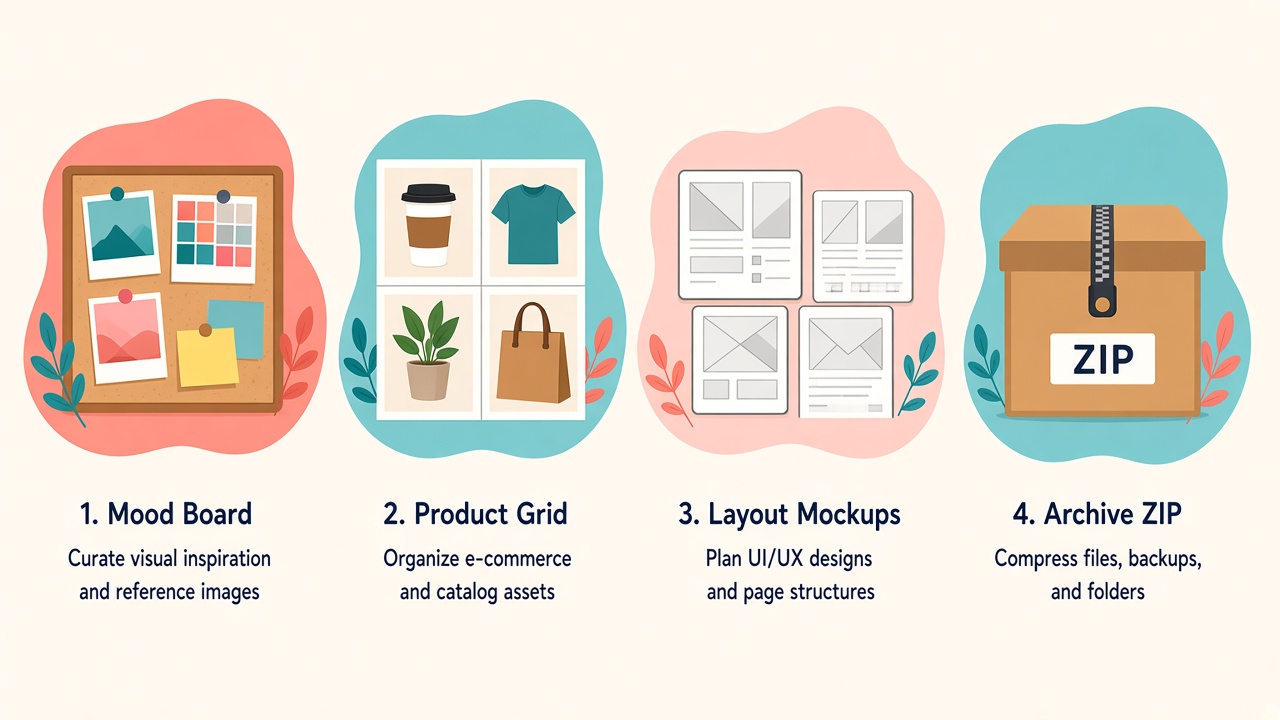
Practical ways people use an image downloader
These match the everyday jobs listed on the ImageToolkit Image Downloader page — the same intent behind extract images from website and download all images from a page searches.
Mood boards
Pull reference images from a public board without right-click hunting.
Product research
Collect listing photos from a public gallery page into one ZIP.
Design assets
Grab public sample images for a mockup or layout pass.
Archive packs
Bundle selected public images for offline review.
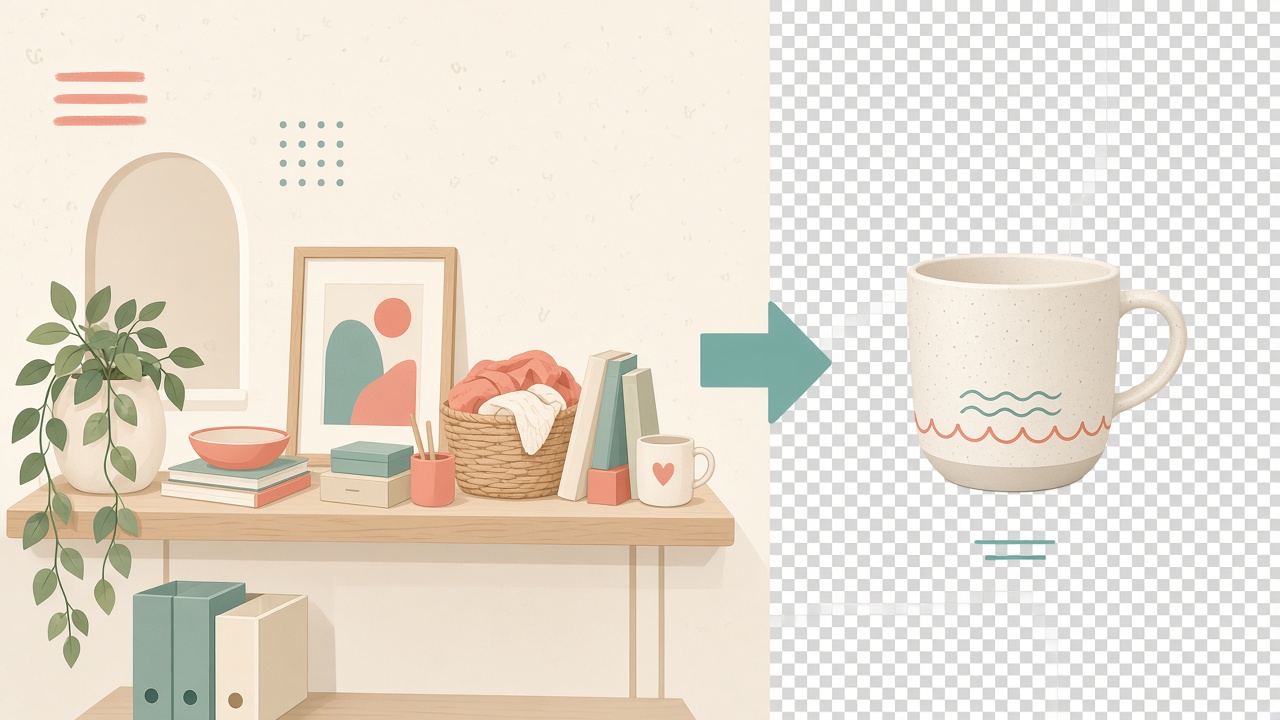
After you have the set, you might remove a background for a cutout, or extract text with OCR if a photo contains readable English copy.
What will not work (and how to avoid dead ends)
Honest limits beat inflated claims.
Login walls and private pages
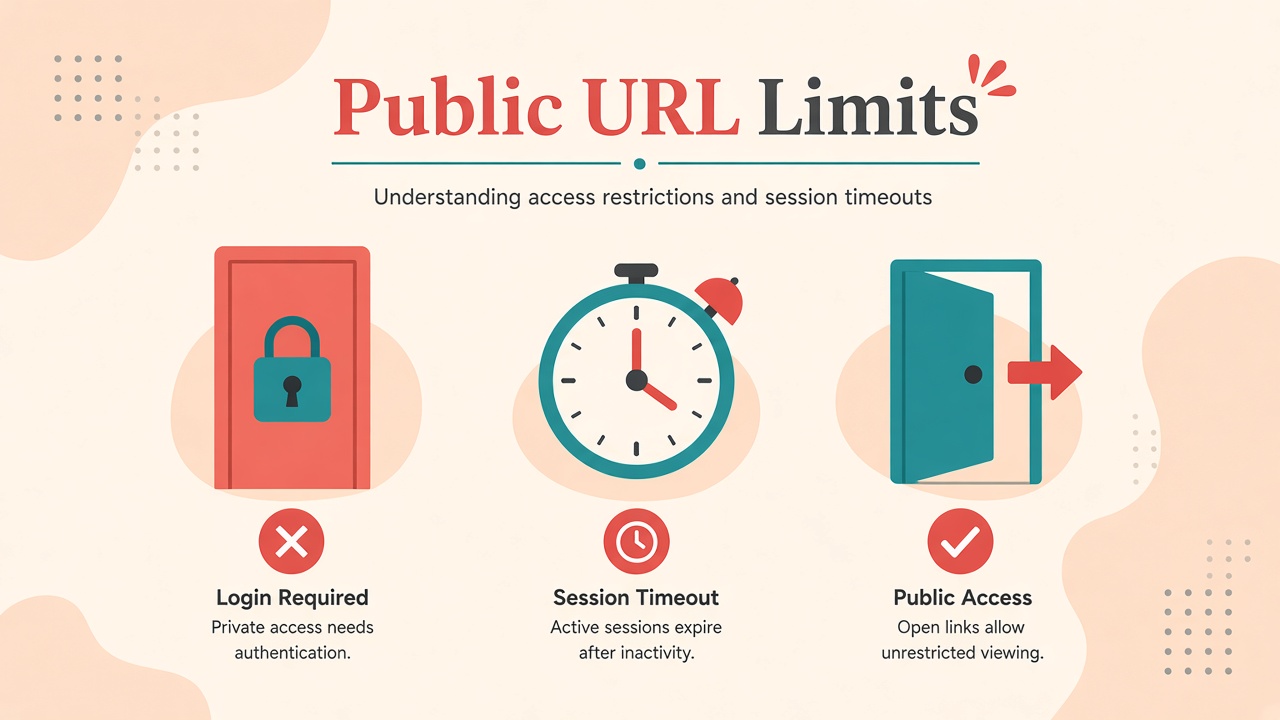
Will not work. Only publicly reachable http/https URLs. If a site requires sign-in, the extractor returns an auth/login-style error and no usable gallery.
Hidden or blocked sources
Some hosts hide image URLs or block hotlinking. Previews can fail even when a page looks open in your browser session.
Paid or gated galleries
Not supported. Public URL friendly does not mean paywall bypass.
Oversized sessions
Hitting 50 images per source, 100 per session, 15 MB per file, or 120 MB total will stop a clean pack. Narrow the page, split Bulk URLs, or download in smaller batches.
Expired previews
Extracted previews live about 15 minutes. If the session expires, paste and extract again.
When the source is public and ready, open the free Image Downloader, paste the link, preview, and save.
Key takeaways
- Download images from a URL online when right-click saving is too slow for a public gallery or board
- An image downloader that previews first helps you keep only the files that matter
- Prefer image download by link / photo download by link on public http/https sources — not login walls
- ImageToolkit supports Single, Bulk (up to 10 URLs), and Board UI paths with session caps (50 per source, 100 total, 15 MB per image, 120 MB session)
- One file downloads alone; multiple selections become a ZIP, then the session clears
- Start on the free ImageToolkit Image Downloader, then browse more utilities from the homepage or all tools
Frequently asked questions
How do I download images from a URL online free?
Paste a public page, board, or direct image URL into a free image downloader, preview the detected set, pick what you need, then download one file or a ZIP. On ImageToolkit, open Image Downloader — no account and no watermark.
How do I download an image by link?
Paste the public image link or page URL into Single mode, run extract, then download the file you need. Direct image URLs and smart page extracts both start the same way: paste, preview, save.
Can I extract images from a webpage or website?
Yes, when the page is publicly reachable. ImageToolkit fetches the URL on the server, shows a preview set, and lets you download selected images. Login-walled or private pages are not supported.
What do Single, Bulk, and Board modes do?
Single pastes one URL (direct image download or smart extract). Bulk accepts up to 10 public URLs in one extract. Board is a UI path for albums/collections that still runs the bulk extract pipeline on the server.
Will login-walled or private pages work?
No. Only publicly reachable http/https URLs. If a site requires sign-in, the extractor returns an auth/login-style error and no usable gallery.
How many images can one session hold?
Up to 50 images per source URL and 100 images total per session, with 15 MB per image and 120 MB across the session. Extracted previews live in a short-lived server session (about 15 minutes) until you download or it expires.
What do I get when I download?
One selected image can download alone; multiple selections become a ZIP (client names like squeeze_images.zip, or squeeze_board.zip from the Board tab). Downloading destroys that server session afterward.
How long can an extract take?
Remote fetches use a short per-request timeout (about 10 seconds). Full extract jobs allow a longer window on the order of three minutes and can be cancelled from the UI if a board is slow.